How to find large files on Mac before deleting anything.
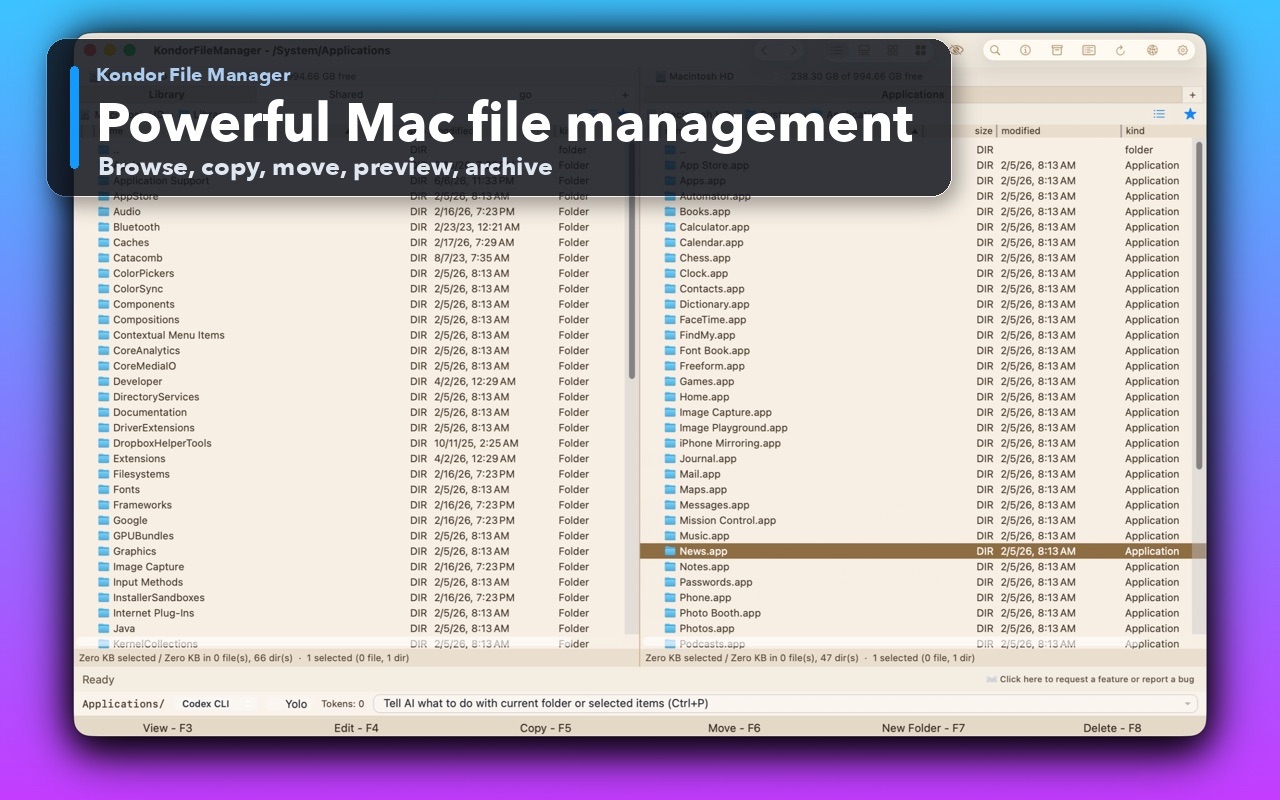
Start with macOS Storage when the goal is a broad disk cleanup. Use Kondor when you need to search a specific folder, set a minimum file size, include subfolders, and inspect the results in a file-management workspace.
macOS Storage is the best first stop for a broad view of what is using disk space.
A size-filtered search is better when you already know which project, download, or media folder needs attention.
Large does not mean disposable. Verify the file, its backup, and the app that owns it before deleting it.
Real product evidence
See the KFM workflow before trying it.
These screenshots show the exact product surfaces referenced in this guide.
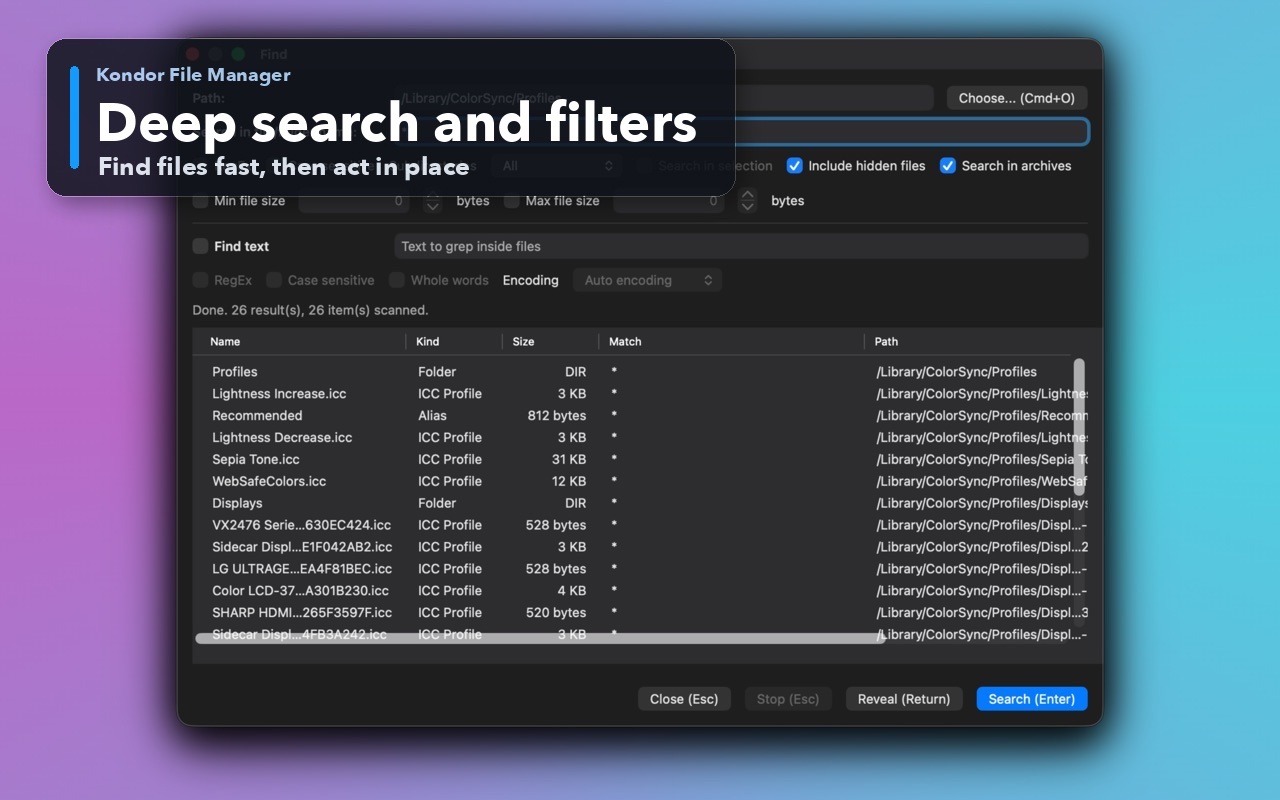
Deep search and filtersSearch by name and attributes, with an option to include hidden files.Two-pane Mac file workspaceKeep source and destination folders visible during repeated file operations.
Step by step
Choose the method that matches the job.
Method 1: use macOS Storage
Best for a safe, system-wide overview with no additional app.
Open Apple menu > System Settings > General > Storage and wait for macOS to finish calculating categories.
Open Documents, then review Large Files, Downloads, or File Browser where those sections are available.
Sort by Size and use the file path or magnifying-glass action to identify where an item belongs.
Remove only files you recognize, then empty Trash later after confirming that your apps and projects still work.
Good to know: Storage categories can take time to update. Treat the view as a cleanup aid, not as proof that every large item is safe to delete.
Method 2: search by size in Kondor
Best for a specific folder, project tree, Downloads cleanup, or repeat file audit.
Open the folder you want to inspect, then press Command-F or choose Commands > Find.
Confirm the search root, enable subdirectories, and set Min file size to a useful threshold such as 500 MB or 1 GB.
Add a name or date filter only if it helps; a broad size-only pass is often the clearest first result set.
Run the search, preview or open the parent folder for unfamiliar results, and move only verified items to Trash.
To measure one selected folder instead, press Space or choose Files > Calculate Folder Size.
Good to know: Kondor calculates folder size asynchronously so the file workspace stays responsive. Its Find window can also include hidden files, but that option should be used deliberately.
Safety and limits
Keep the useful guardrails.
System Data can include caches, snapshots, indexes, and app-managed files that are not safe to remove manually.
Do not delete files inside an app bundle, Photos library, mail store, virtual machine, or project dependency folder unless you understand the consequence.
A cloud placeholder may report size differently from a fully downloaded local file.
Keep a current backup before a large cleanup, and use Trash so an accidental removal remains recoverable at first.
Open System Settings > General > Storage and review Documents or File Browser sorted by size. Use Kondor's Find window with a minimum file size when you need a targeted search inside one folder tree.
How can I find large folders on a Mac?
macOS Storage can reveal large areas of the disk. In Kondor, select a folder and press Space to calculate its recursive size, then compare likely folders one at a time.
Is it safe to delete every large file macOS shows?
No. Size alone says nothing about importance. Identify the owning app or project, confirm a backup, and prefer deleting through that app when it manages the data.
Can Kondor search hidden files by size?
Yes. Enable Include hidden files in the Find window and set a minimum size. Use this carefully because hidden folders often contain app configuration, caches, or development data.