
Finder alternative
A Finder alternative when file work gets repetitive.
Finder is the right default for ordinary Mac browsing. Kondor is a focused alternative for users who repeatedly compare folders, inspect file details, work with archives, connect to remote resources, and run batch file operations.
Product screenshots
What this workflow looks like in Kondor.
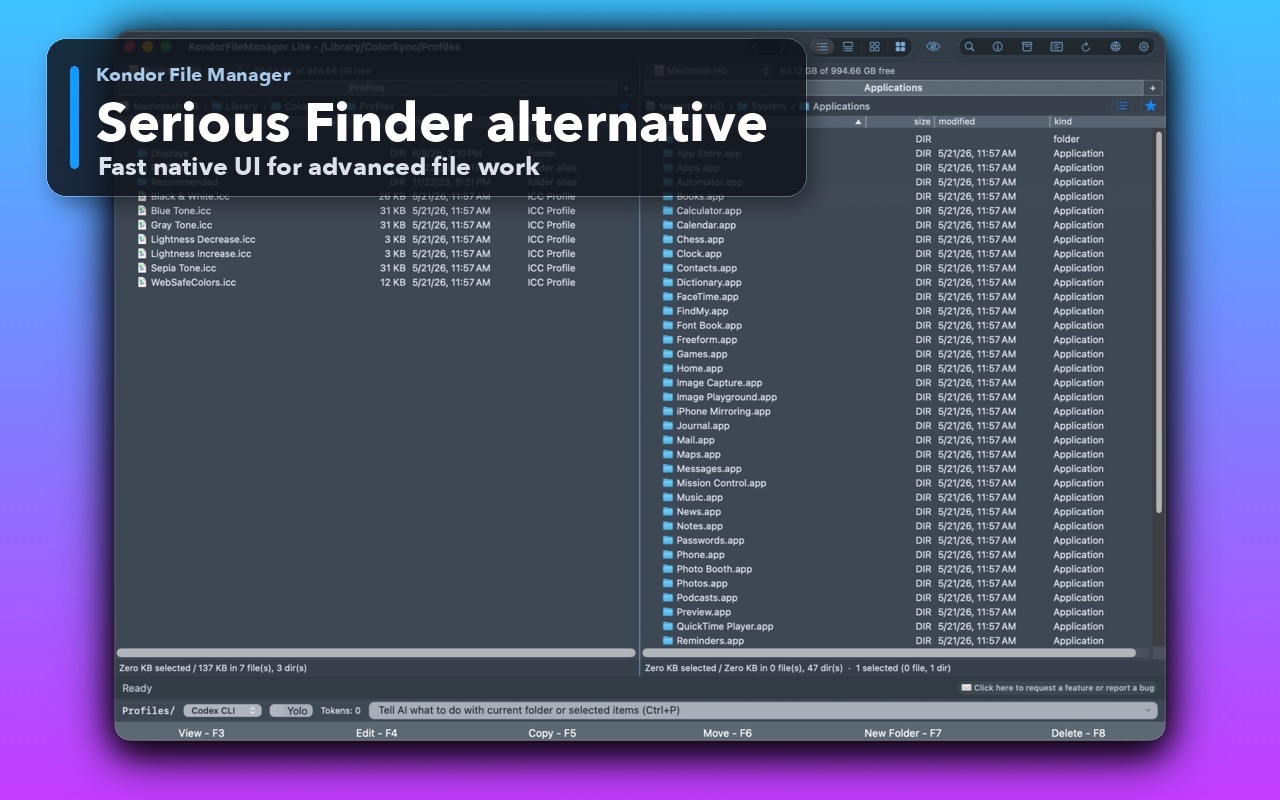
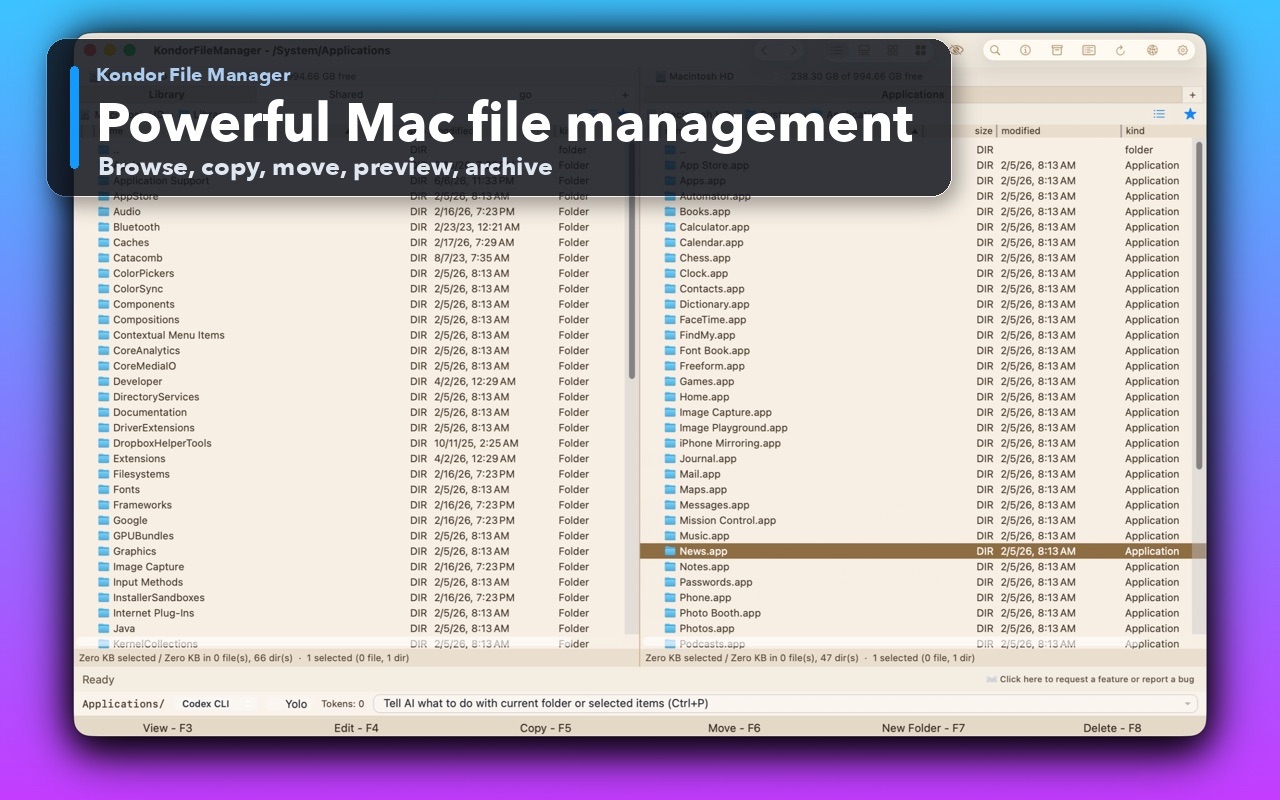
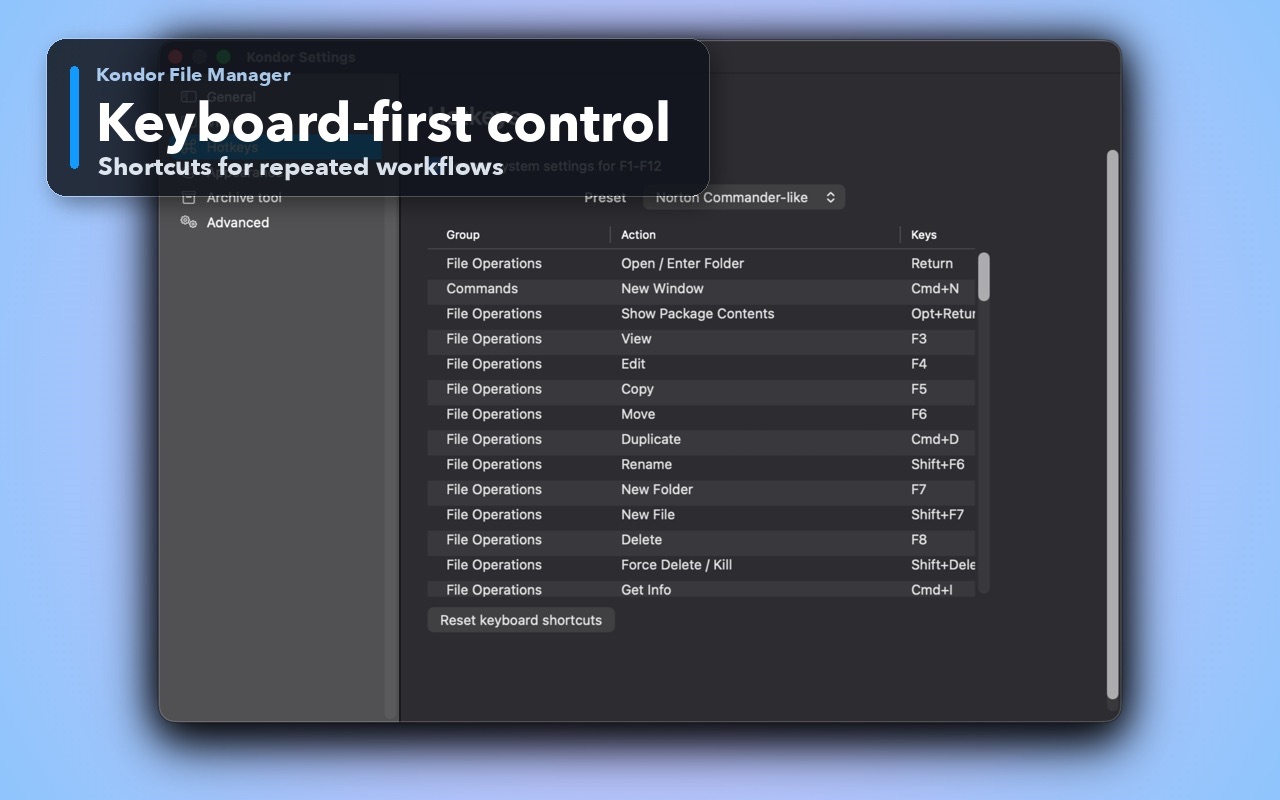
Inspect the real interface before downloading, including the panes, dialogs, and controls used for this job.
Who it helps
Use Kondor when file work needs more control.
Users who keep opening multiple Finder windows for the same file job.
People who miss commander-style file control from Windows, Linux, or older file managers.
Mac users who want local-first file work without file-content uploads or account friction.
What slows people down
Where the default workflow gets slow.
Repeated file work often needs side-by-side context, not isolated folder windows.
Long-running copy, move, sync, archive, and conversion jobs need visible progress and recovery paths.
Remote folders, archives, and media conversion usually require leaving Finder.
How Kondor helps
Purpose-built surfaces for this workflow.
Match the tool to the repeated job, then keep the rest of your Mac workflow unchanged.
Keep fast local browsing, previews, archives, sync, remote files, and Pro tools in one workspace.
Use keyboard shortcuts and compact file tables for repeated file operations.
Workflow examples
Common ways people use this workflow.
Clean Downloads faster
Sort, preview, rename, archive, move, and delete downloads from a dense table with file details visible.
Compare two folders
Keep source and destination visible, review differences, and sync selected changes in a controlled flow.
Inspect before acting
Preview text, images, archives, and file details before opening external apps or changing files.
Trust
Why the download is lower risk.
Kondor keeps Finder's Mac-native expectation but adds a more operational file-manager layout.
Direct download is signed/notarized; Mac App Store path is also available.
Pricing stays simple: free Lite, optional Pro $19/year.
Related pages
Next useful comparison or guide.
FAQ
Quick answers before you choose.
Should Kondor replace Finder completely?
Most users should keep Finder as the system default and use Kondor when the file job needs stronger navigation, side-by-side context, previews, archives, sync, remote resources, or bulk tools.
Can Kondor be used by keyboard only?
Kondor is designed around keyboard-first file work, including commander-style actions, navigation, and menu shortcuts where they fit.
Why not just use Finder tabs?
Finder tabs help with browsing. Kondor is stronger when you need side-by-side operations, file-work progress, archive flows, folder sync, remote/cloud resources, and repeated batch actions.