How to compare two folders on Mac before syncing them.
Use Terminal's recursive diff for a quick text list of different and missing files. Use Kondor Pro when you want both folders visible, a comparison view, and a deliberate path from review to selected sync actions.
Start with a read-only comparison; do not make sync the first step.
Folder names and total sizes can match while individual contents still differ.
A comparison or sync tool is not a backup. Keep a recoverable copy before resolving important differences.
Real product evidence
See the KFM workflow before trying it.
These screenshots show the exact product surfaces referenced in this guide.
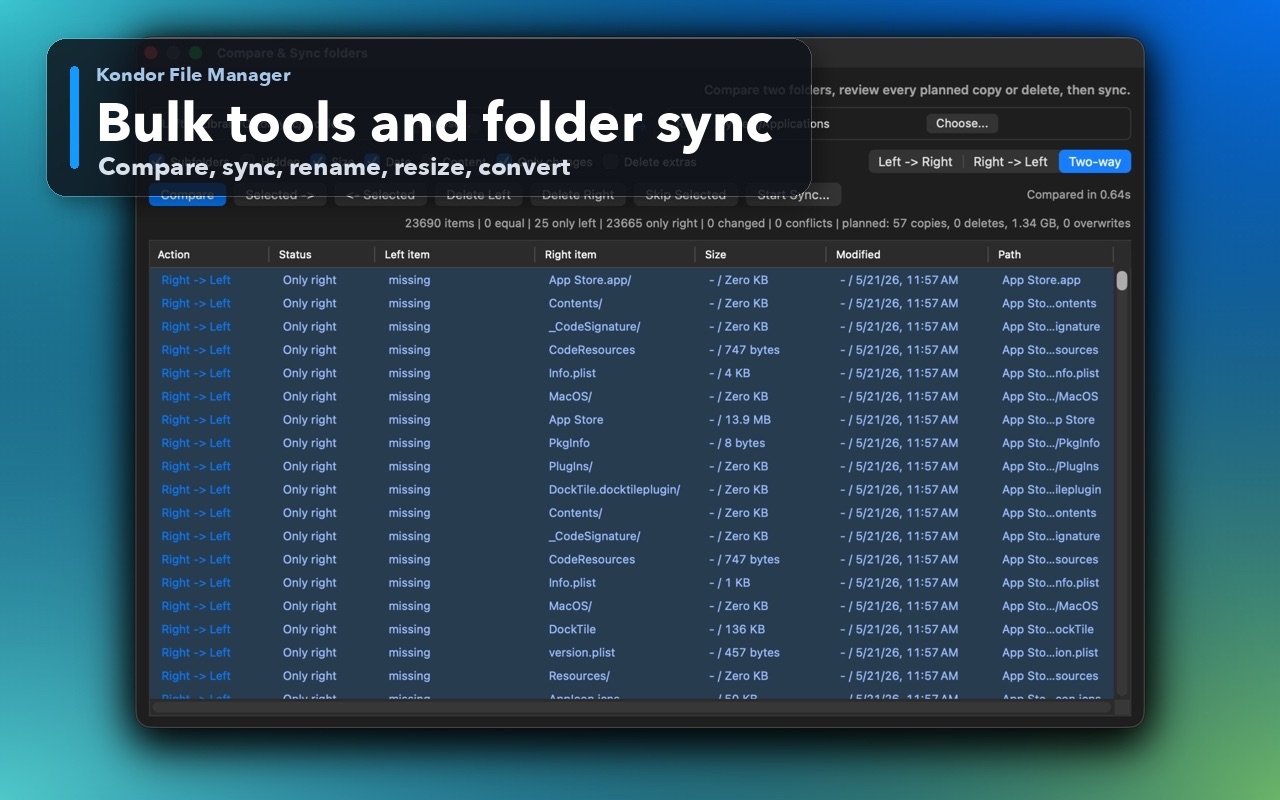
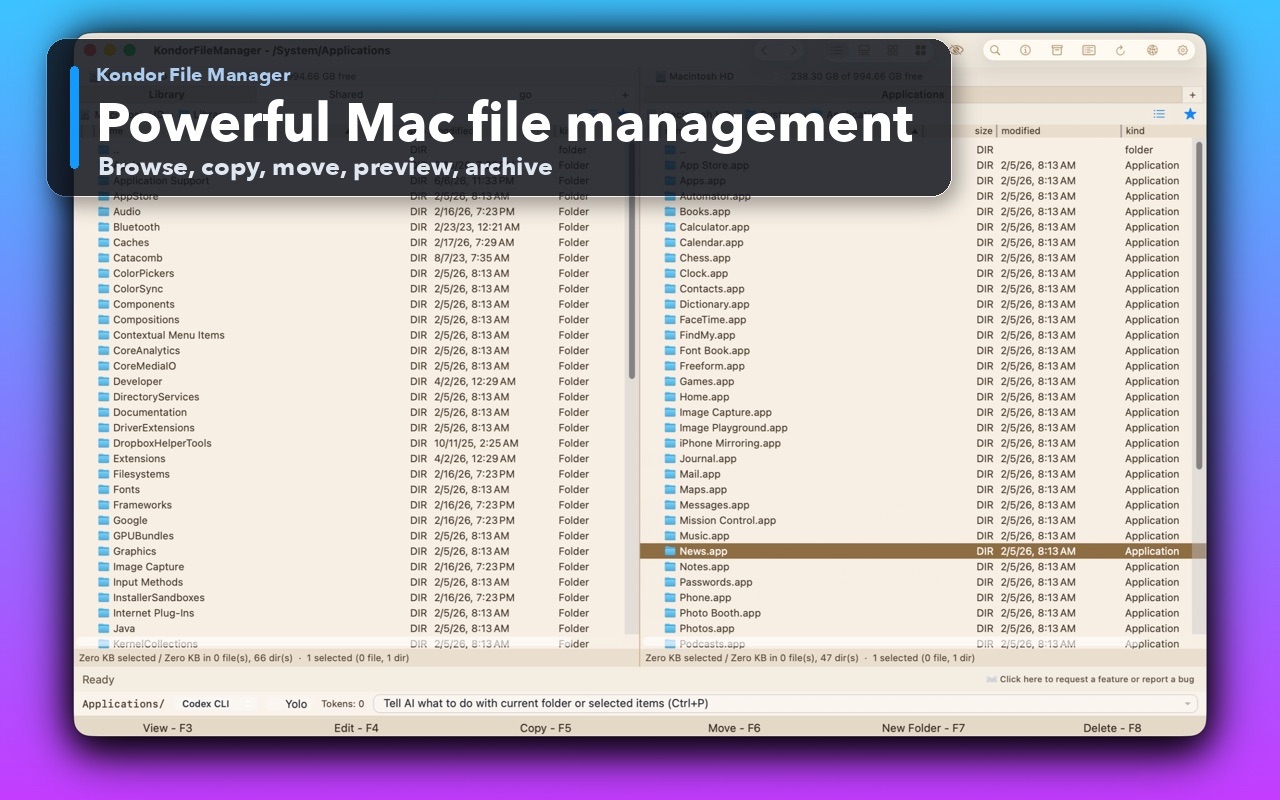
Folder compare and syncReview folder differences before running a deliberate synchronization.Two-pane Mac file workspaceKeep source and destination folders visible during repeated file operations.
Step by step
Choose the method that matches the job.
Method 1: compare folders with Terminal
Best for a quick, read-only recursive list of missing or different files.
Open Terminal.
Type diff -rq followed by a space. Drag the first folder from Finder into Terminal, add another space, then drag the second folder into Terminal.
Press Return. Lines beginning with Only in identify items present on one side; Files ... differ identifies file pairs with different contents.
Save or review the output before deciding whether any copy, rename, or deletion is appropriate.
Good to know: Dragging folders into Terminal inserts escaped paths and avoids most quoting mistakes. The -r option compares recursively; -q reports differences without printing file contents.
Method 2: Compare & Sync in Kondor Pro
Best for a visual two-pane review that may continue into a controlled sync.
Open the first folder in one Kondor pane and the second folder in the other.
Press Control-Option-S or choose Files > Compare & Sync folders.
Run Compare and inspect the differences before enabling any action.
Review direction, conflicts, and the files affected. Change or deselect anything that should remain untouched.
Run the selected sync actions, then compare again to verify the intended result.
Good to know: Compare & Sync is a Kondor Pro workflow. Use it to make differences visible, but keep a separate backup for data you cannot replace.
Safety and limits
Keep the useful guardrails.
A folder's total size and item count are not enough to prove that its contents match.
File-system case sensitivity, permissions, symlinks, package contents, and cloud placeholders can affect comparison results.
Do not turn a comparison into a two-way sync until you understand which side should win for each difference.
Time Machine or another backup system is still necessary; folder sync can faithfully propagate an unwanted deletion.
Finder can show Get Info for each folder, but matching size and item counts do not prove identical contents. Use a read-only recursive diff or a dedicated comparison view for file-level differences.
What Terminal command compares two folders on Mac?
Use diff -rq followed by the two folder paths. The command recursively reports files that differ and items found only on one side.
Can Kondor compare folders without syncing them?
Yes. Open the folders in opposite panes and run Compare first. Review the results without committing sync actions.
Is folder sync the same as backup?
No. Sync reconciles locations and can copy unwanted changes or deletions. A backup preserves recoverable history independently of the current folder state.