How to compare two text files on Mac, line by line.
Run diff -u with the two file paths in Terminal to see a read-only unified diff. In Kondor Pro, select two local text files, choose Files > Compare Text Files, and review the line-numbered comparison. Both sides can be edited, with background diff updates and separate saves.
Use a text diff for changed lines and a file hash for byte-level identity. These answer different questions.
Keep an original copy before editing configuration or source files. Review a change before transferring it to the other side.
Kondor's editable Text Diff is a Pro feature; local hash calculation and basic file viewing remain available in Lite.
Real product evidence
See the KFM workflow before trying it.
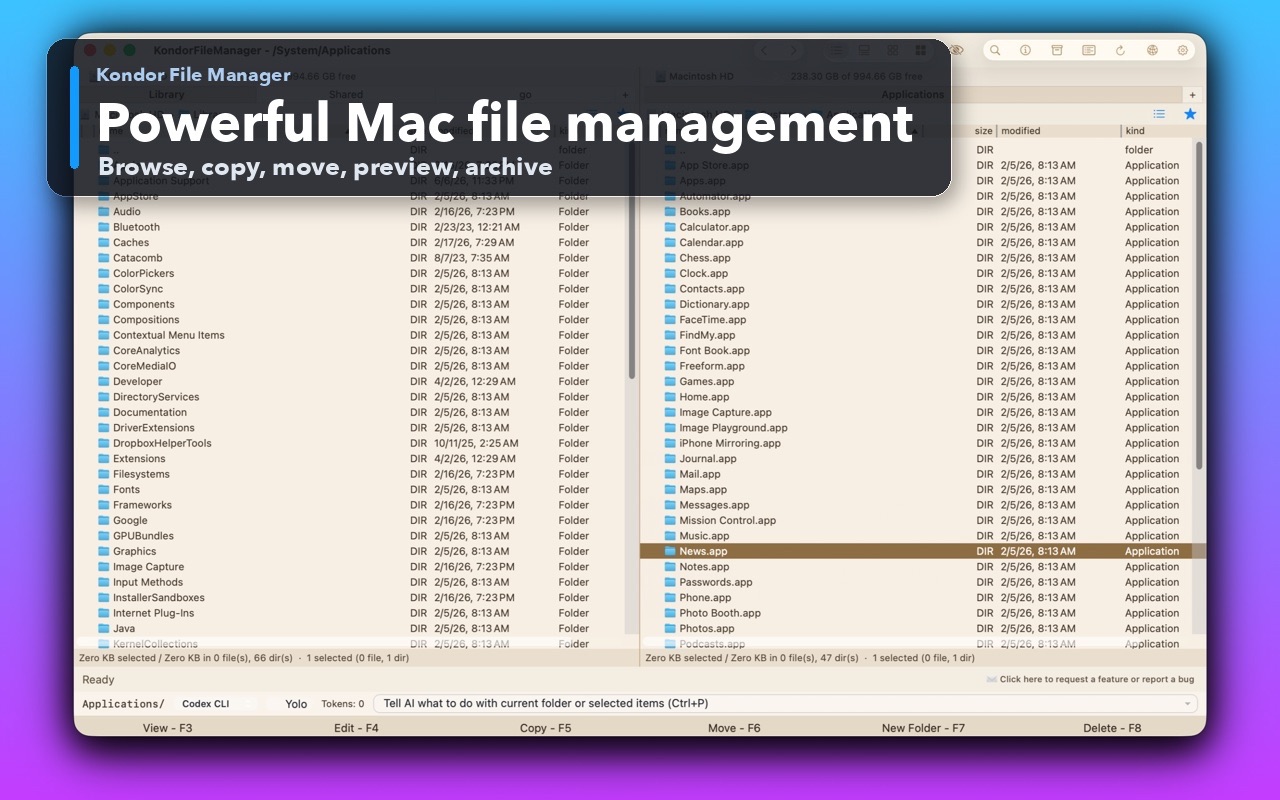
Real Kondor screenshots show the file workspace. The steps below explain the controls used for this task.
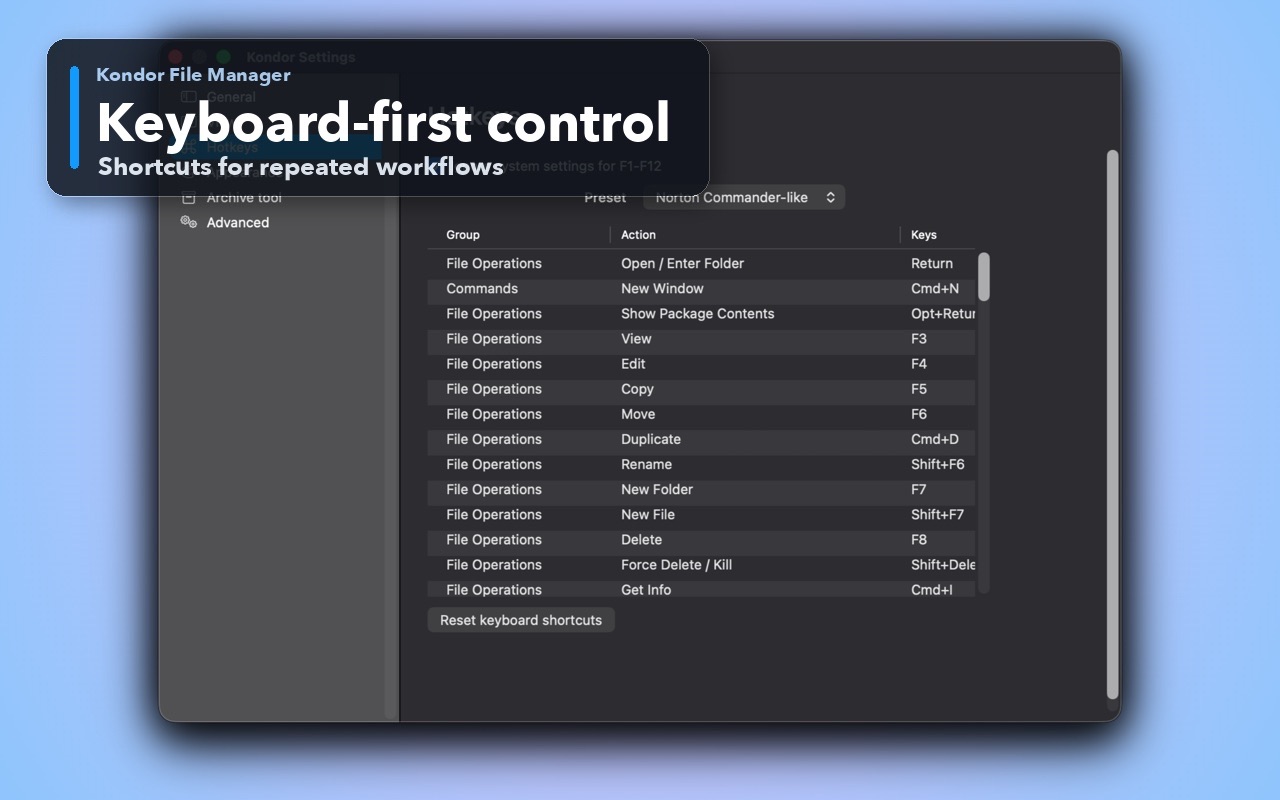
Two-pane Mac file workspaceKeep source and destination folders visible during repeated file operations.Keyboard-first controlDiscover and customize commands for fast file work without leaving the keyboard.
Step by step
Choose the method that matches the job.
Read a unified diff in Terminal
An occasional comparison that does not need an editor.
Place the two text files somewhere you can identify. Keep track of which is the older or reference version.
Open Terminal, type diff -u followed by a space, drag in the first file, add a space, then drag in the second file.
Press Return. The --- and +++ headers identify the two files; lines starting with - belong to the first version and + to the second.
No output normally means the readable files match. Check any error message before treating silence or a failed command as a successful comparison.
Good to know: diff returns status 1 when differences are found; that is a normal comparison result. Do not paste its output into a config file as a replacement document.
Review and edit both sides in Kondor Pro
Comparing scripts, Markdown, configuration, or source code while organizing files.
Select two local files in one pane, or select one file in each pane.
Choose Files > Compare Text Files or press Control-Option-D with the default keymap.
Read the highlighted differences beside their line numbers. Recognized formats use syntax highlighting, and ordinary text selection and copy/paste work.
Edit the intended side or use the change-transfer controls where appropriate. Let the background comparison update, then review the resulting document.
Save each changed file you intend to keep. Respond to the unsaved-change prompt before closing instead of assuming both originals were already updated.
Good to know: This is a two-file comparison, not a three-way source-control merge. Use your version-control tool when you need common-ancestor merge handling.
Worked examples
Check the result you should expect.
Spot a changed server port
Input or command
Reference config:
port=8080
mode=production

Second config:
port=8081
mode=production
Expected result
-port=8080
+port=8081
 mode=production
The changed port is the difference to investigate; the unchanged mode provides context. This simplified unified-diff excerpt omits its file and line-range headers.
Safety and limits
Keep the useful guardrails.
Word documents, PDFs, spreadsheets, and images are not plain text. Export a suitable text representation or use a format-specific comparison tool.
Line endings, encoding, and whitespace can create differences even when the visible wording seems identical.
Use the bounded preview for a multi-gigabyte log. An editable two-document diff is a different workload and should not be assumed to have the same huge-file behavior.
Yes. Terminal's diff command is built into macOS. Kondor Lite can also calculate hashes when the question is whether two local files have the same bytes; the editable visual Text Diff is Pro.
Can Kondor compare JSON or configuration files?
It can compare their text and highlight supported syntax. It does not treat differently ordered JSON keys as automatically equivalent; review the text differences in context.
Can I edit both files in the comparison?
Yes. Kondor Pro's Text Diff supports editing on both sides and updates the comparison in the background. Save each modified document deliberately.
How is text comparison different from folder comparison?
A text diff explains changed lines inside two documents. Folder comparison identifies missing or different files across two directory trees and may lead to synchronization.