How to open a large log file on Mac without loading it all.
Use tail -n 200 to read the end of a log, tail -f to watch new lines, or less to browse and search an existing file in Terminal. In Kondor Lite, select a local log and open Preview Pane with Shift-F3 for bounded text paging, line numbers, Find, and navigation through the file.
Reading the end, following a live log, and browsing an existing file need different controls.
Kondor's local Preview Pane is in Lite and reads bounded pages instead of allocating the whole file as one document.
Logs may contain access tokens, personal data, or private paths. Inspect locally and redact before sharing an excerpt.
Real product evidence
See the KFM workflow before trying it.
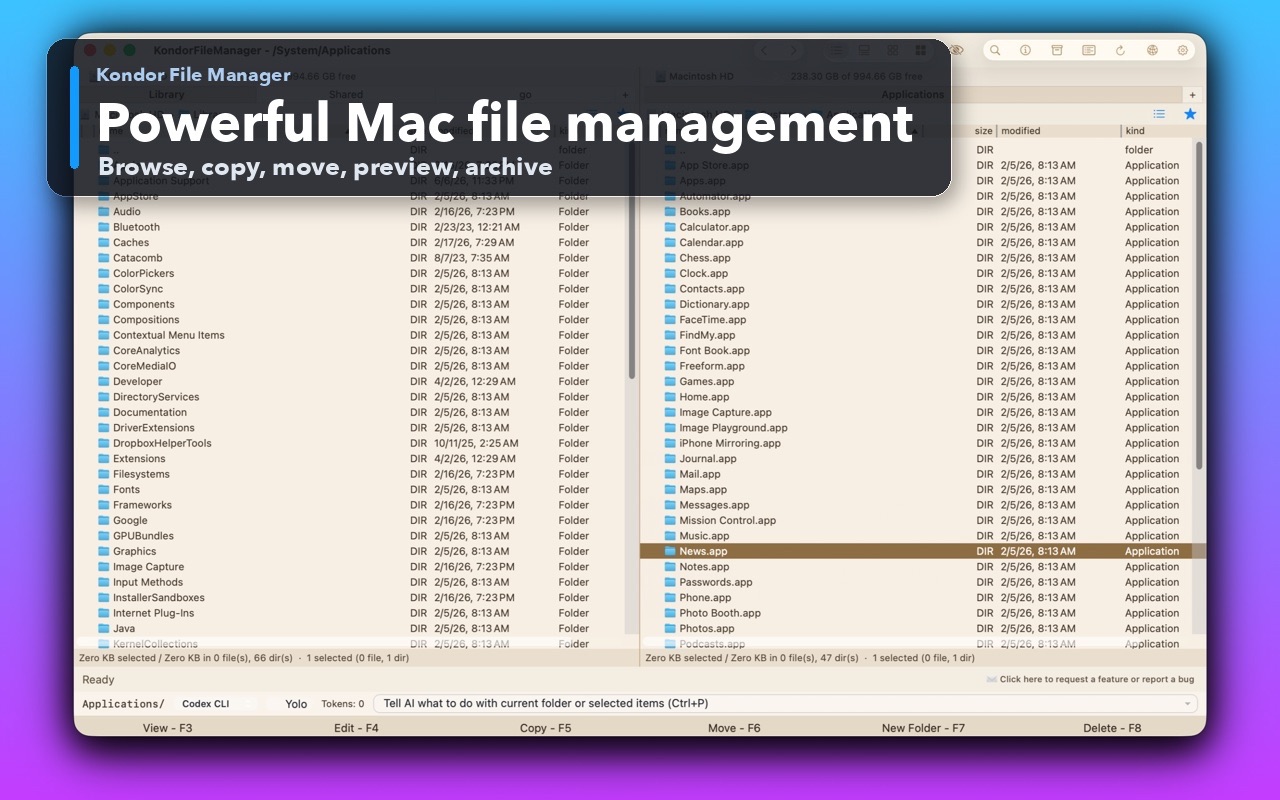
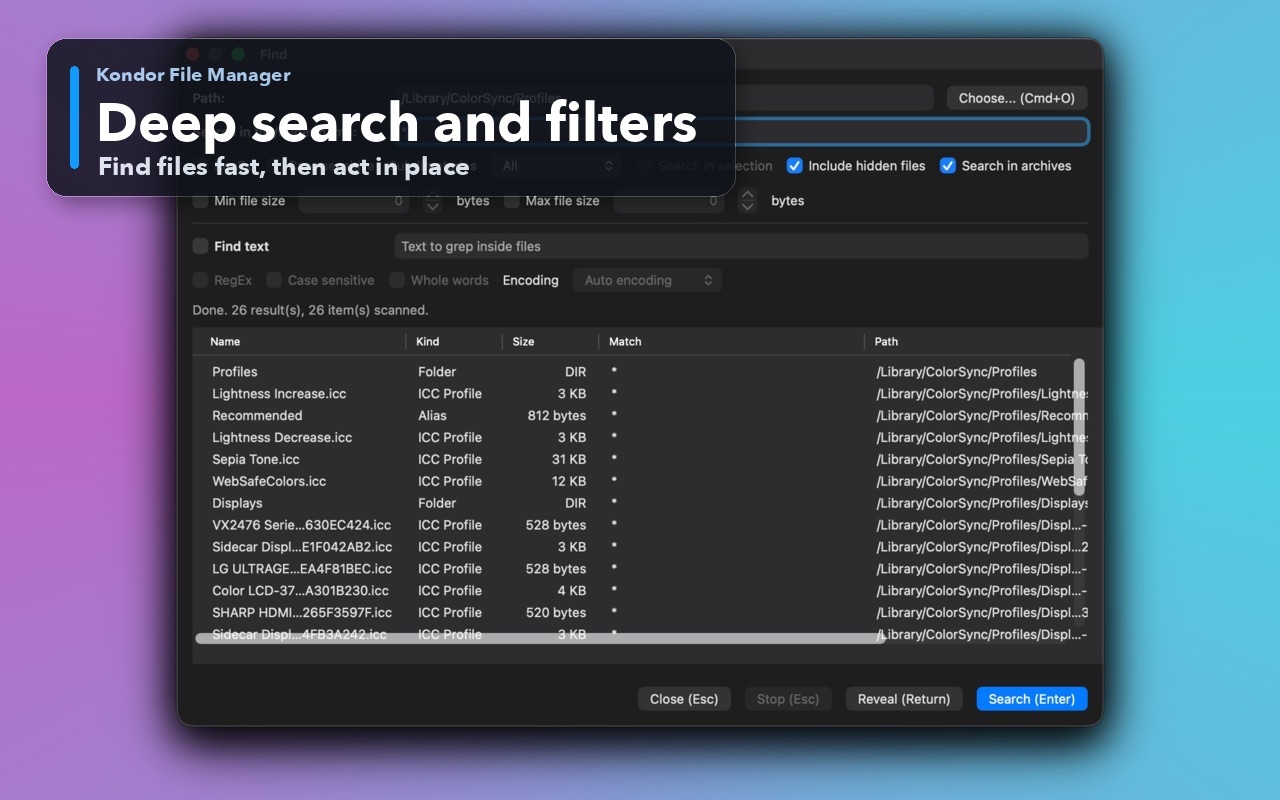
Real Kondor screenshots show the file workspace. The steps below explain the controls used for this task.
Two-pane Mac file workspaceKeep source and destination folders visible during repeated file operations.Deep search and filtersSearch by name and attributes, with an option to include hidden files.
Step by step
Choose the method that matches the job.
Use tail or less for the question you need answered
A server log, build output, or diagnostic file when Terminal is convenient.
For recent messages, run tail -n 200 followed by the log's quoted path.
To watch new lines appended to the same file, use tail -f with its path. Press Control-C to stop following.
To browse an existing log, run less with the file path. Use / followed by a search term, Return to search, and n for the next result.
In less, g moves to the beginning, Shift-G to the end, and q exits. An initial scan to reach a far point can still take time on a huge file.
Good to know: If an application rotates or replaces its log, following the original file may not show the replacement. Use the application's own log viewer when you need its rotation-aware or structured diagnostics.
Keep a paged log preview beside the file list
Inspecting downloaded logs while keeping related files and a destination visible.
Open the log folder in Kondor, select the local .log or text file, and toggle Preview Pane with Shift-F3 or View > Interface > Preview Pane.
Use the preview's scrollbar to explore the file. The viewer loads bounded content as you navigate rather than opening the entire log for editing.
Use Find in text and the next/previous controls to locate a term. For long lines, toggle Word Wrap when it improves readability.
Select and copy a relevant excerpt for your notes. Close Preview Pane when finished; a hidden pane does not continue loading selected files.
Good to know: For an unsupported binary, the preview offers Hex and filtered Text instead. Printable strings in a binary are not a complete decoded log format.
Worked examples
Check the result you should expect.
Check the last 200 lines of a build log
Input or command
tail -n 200 "$HOME/Downloads/build.log"
Expected result
Up to the last 200 lines, without opening a full editable document
Use less for an earlier part of the same log, or tail -f when you want new messages while the build is still writing. Replace the sample path with your own file.
Safety and limits
Keep the useful guardrails.
Bounded memory does not mean instant scanning. Finding a rare string or indexing lines in a huge file still requires reading bytes from storage.
Preview is for inspection. Use a suitable editor or processing command for intentional changes to an entire log.
Compressed logs must first be decompressed or read with an appropriate compression-aware tool. Keep enough disk space for an extracted copy.
Use a streaming command such as tail for the end, less for browsing, or Kondor's paged preview. Avoid assuming a normal editor can load a 2 GB document comfortably.
Can Kondor search a large log file?
The text preview provides Find, next/previous matches, and highlighting. Searching a very large file can take time; bounded preview memory does not remove the need to read its content.
How do I watch a log update in Terminal?
Use tail -f followed by the file path, then Control-C to stop. Check for log rotation if new messages stop appearing after the application replaces its log.
Is the preview a hex editor?
No. Kondor's Hex mode is a viewer for offsets, bytes, and text representation. It does not promise binary editing or decoding of every proprietary format.