Finder can open a Terminal window from a folder in its Path Bar or Services menu. Kondor Direct Edition adds a keyboard-first Open Terminal Here command for the active local folder and can target macOS Terminal, iTerm, or Ghostty.
Finder already provides a built-in route through the Path Bar and Services menu.
Kondor Direct Edition turns the active local folder into a configurable Control-O workflow.
Always confirm the shell prompt path before running a command that changes or deletes files.
Real product evidence
See the KFM workflow before trying it.
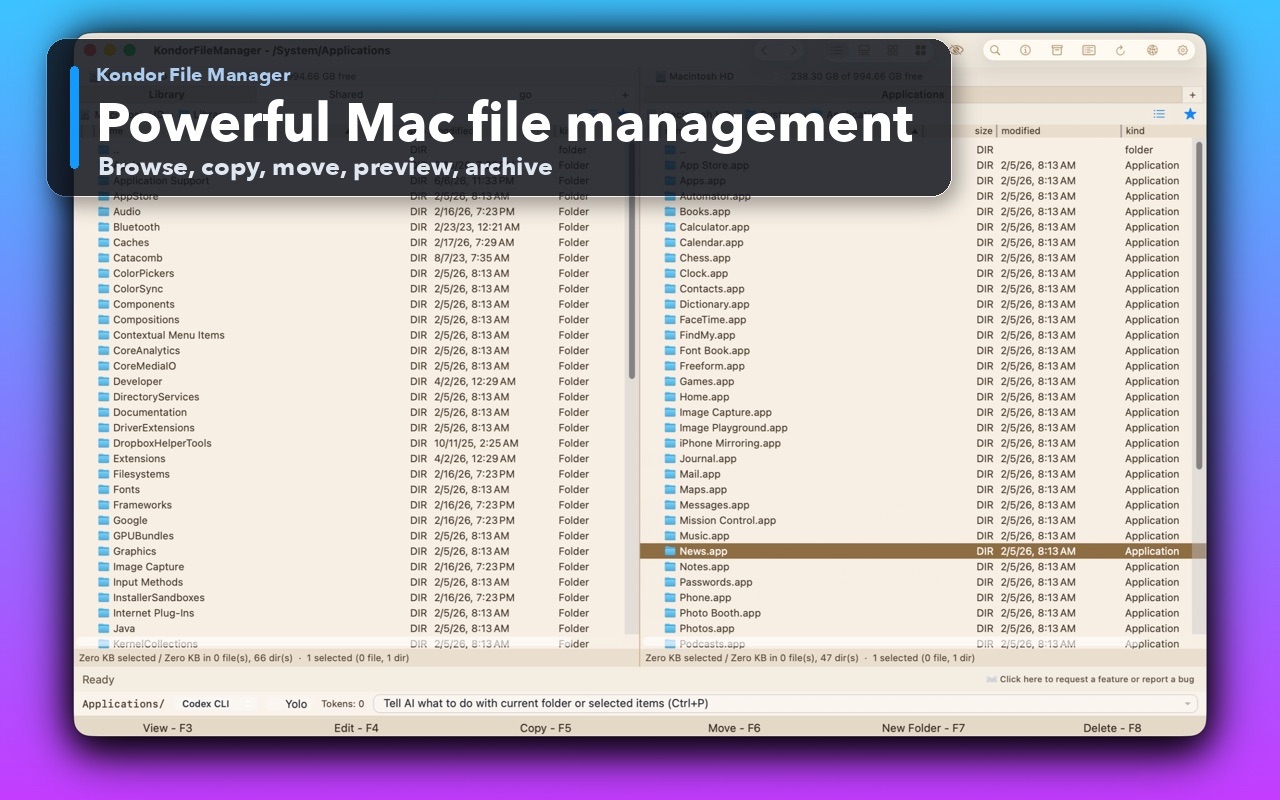
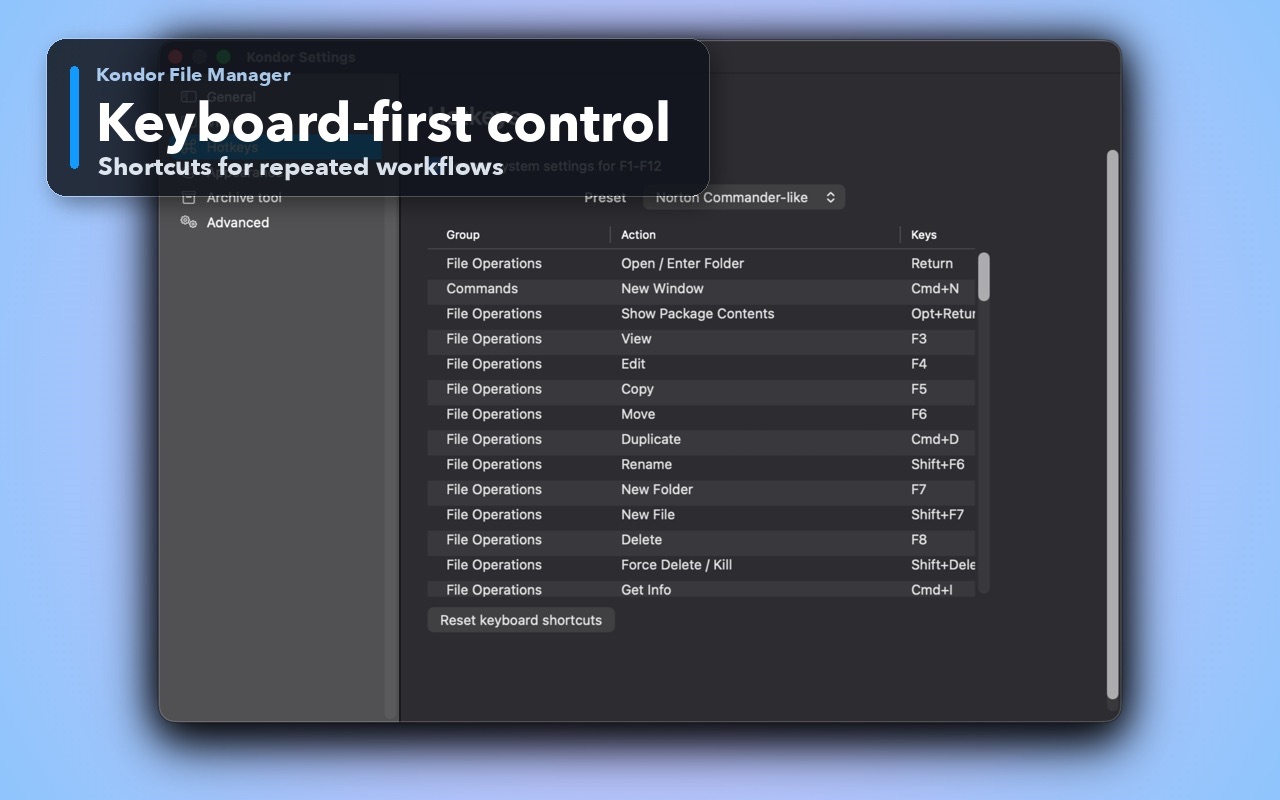
These screenshots show the exact product surfaces referenced in this guide.
Two-pane Mac file workspaceKeep source and destination folders visible during repeated file operations.Keyboard-first controlDiscover and customize commands for fast file work without leaving the keyboard.
Step by step
Choose the method that matches the job.
Method 1: open Terminal from Finder
Best for an occasional command in a folder with no additional app.
Open the folder in Finder and choose View > Show Path Bar if the path bar is hidden.
Control-click the folder name in the path bar at the bottom of the window.
Choose Open in Terminal. Depending on macOS settings, the command may appear under Services as New Terminal at Folder or New Terminal Tab at Folder.
Check the path shown in the shell prompt before entering a command.
Good to know: If the Terminal service is missing, check System Settings > Keyboard > Keyboard Shortcuts > Services and enable the Files and Folders terminal actions.
Method 2: use Open Terminal Here in Kondor
Best for developers and operators who move between folders throughout the day.
Open a local folder in the active Kondor pane.
Press Control-O, choose Commands > Open Terminal Here, or use the folder context menu.
Kondor opens the configured app at that folder. macOS Terminal is the fallback; iTerm and Ghostty can be selected in settings when installed.
Confirm the working directory in the new terminal before running the next command.
Good to know: Open Terminal Here is available in Kondor Direct Edition, not the Mac App Store build. It applies to local file-system folders, not archive or remote-provider locations.
Safety and limits
Keep the useful guardrails.
Terminal commands can bypass the safety prompts and Trash behavior used by graphical file operations.
Kondor's Open Terminal Here command is Direct Edition only because of App Store sandbox boundaries.
A remote, cloud, device, or archive location is not a normal local shell working directory.
If the selected terminal app is unavailable, Kondor falls back to macOS Terminal after reporting the issue.
How do I open Terminal at the current Finder folder?
Show Finder's Path Bar, Control-click the current folder, and choose Open in Terminal or the equivalent Terminal service.
What is the shortcut for Open Terminal Here in Kondor?
The default shortcut is Control-O. Kondor displays current shortcuts in its menus and lets you customize them.
Can Kondor open iTerm or Ghostty in the current folder?
Yes, in Direct Edition. Select the installed terminal app in Kondor's settings, then use Open Terminal Here from a local folder.
Why is Open Terminal Here unavailable in the App Store edition?
The App Store build follows macOS sandbox rules. Kondor keeps terminal launching in the Direct Edition rather than weakening that distribution boundary.