
For developers
A Mac file manager for developers who live in folders.
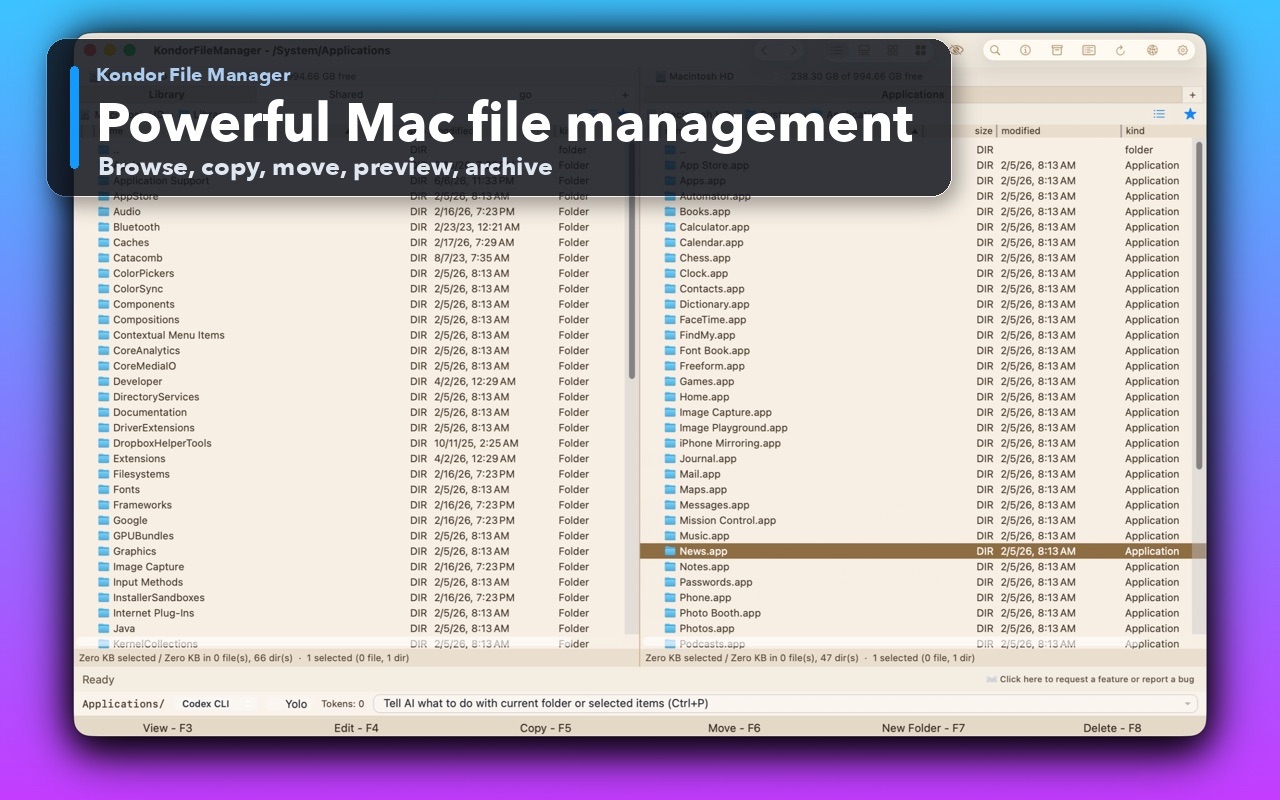
Developers and operators move between project folders, build artifacts, logs, archives, config files, downloads, remote resources, and device files. Kondor gives that work a compact native Mac workspace instead of scattering it across Finder, Terminal, transfer tools, archive utilities, and media helpers.
Product screenshots
What this workflow looks like in Kondor.
Inspect the real interface before downloading, including the panes, dialogs, and controls used for this job.
Who it helps
Use Kondor when file work needs more control.
Developers managing source folders, logs, build output, packages, archives, and release files.
Operators moving files between local folders, servers, cloud storage, devices, and external drives.
Technical Mac users who want keyboard-first control without losing native macOS app behavior.
What slows people down
Where the default workflow gets slow.
Finder is fine for ordinary browsing, but technical file work often needs richer file detail, previews, and two visible locations.
Build outputs, logs, archives, and remote files often require several tools before the actual file job is done.
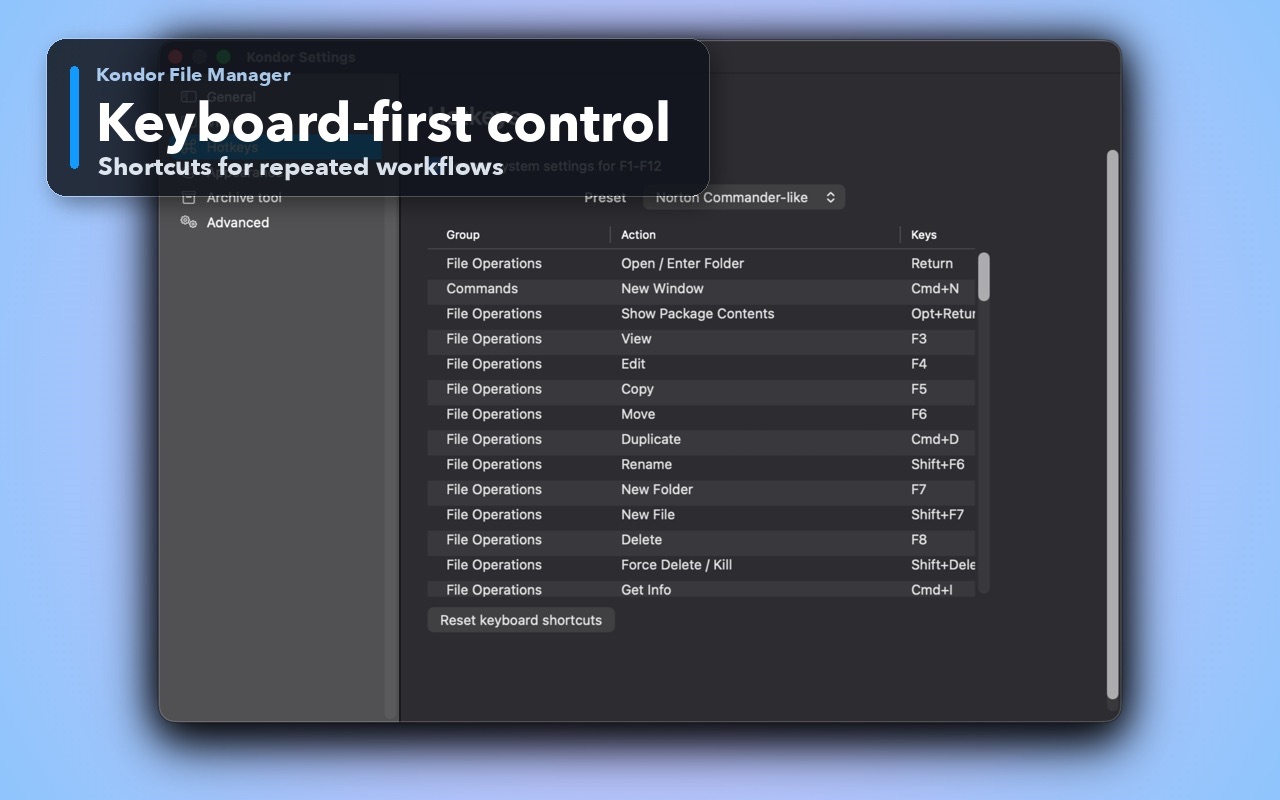
Keyboard-heavy users need dependable commands, visible shortcuts, and dialogs that do not slow down repeated actions.
How Kondor helps
Purpose-built surfaces for this workflow.
Match the tool to the repeated job, then keep the rest of your Mac workflow unchanged.
Keep remote/cloud provider surfaces and local folders in the same file-management model where available.
Use commander-style keyboard actions for repeated copy, move, rename, delete, view, edit, refresh, and tab workflows.
Workflow examples
Common ways people use this workflow.
Build and release cleanup
Review build folders, compare outputs, package archives, inspect logs, and move release files without losing folder context.
Remote operations
Work between local project folders and FTP, SFTP, WebDAV, S3, or cloud resources where available.
Inspect before opening heavy tools
Preview text, images, hex content, archives, and file details before launching a dedicated editor or IDE.
Trust
Why the download is lower risk.
Kondor documents text, hex, and native ImageIO-backed image viewing.
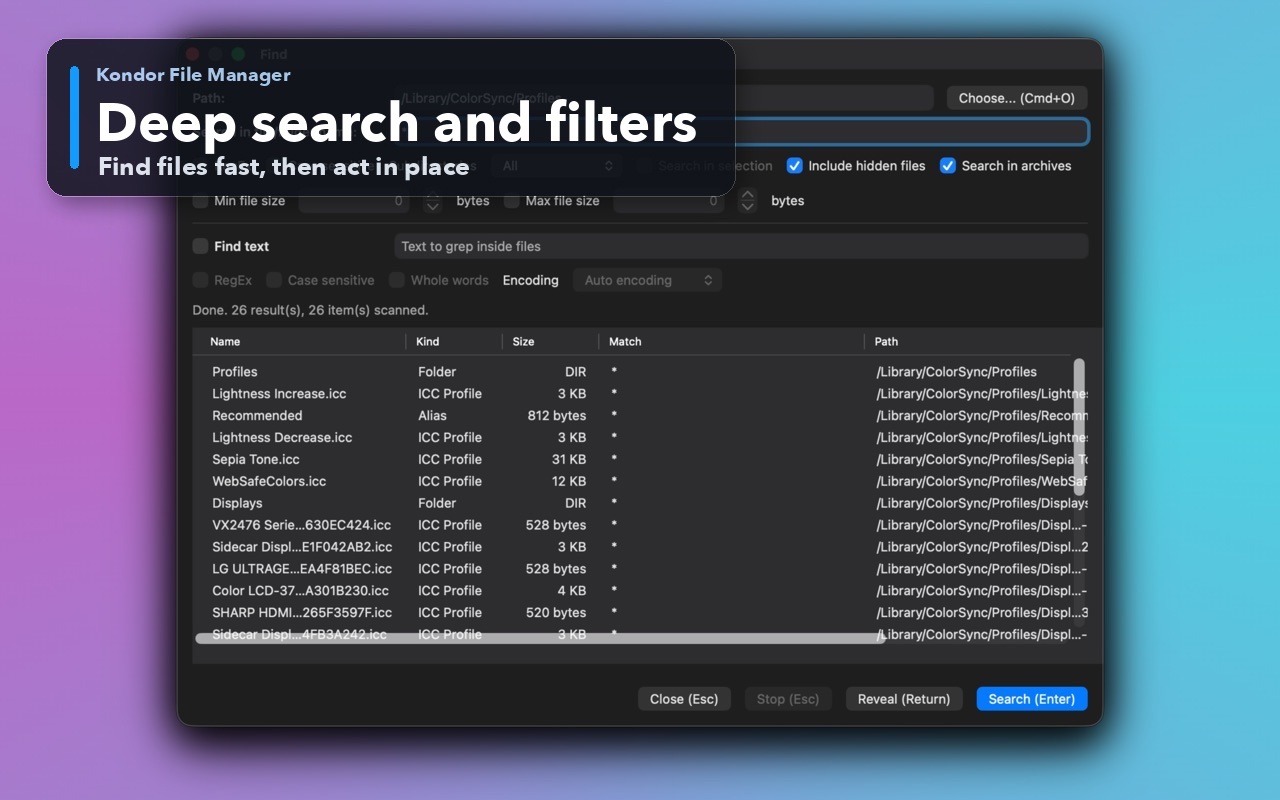
Find can search local folders, archive folders, supported remotes/cloud resources, and supported devices.
Keyboard access is a core KFM product requirement across menus, dialogs, and file operations.
Related pages
Next useful comparison or guide.
FAQ
Quick answers before you choose.
Why would a developer use Kondor instead of Finder?
Kondor is useful when the developer file job needs two panes, keyboard actions, previews, text or hex inspection, archives, remote resources, sync, and visible progress.
Does Kondor replace Terminal?
No. Kondor complements Terminal. Use Terminal for command execution and Kondor for visual file navigation, selection, previewing, archives, transfers, and cleanup.
Can Kondor inspect source and log files?
Kondor includes internal viewing workflows for text, hex, and image content, which helps inspect files before opening a heavier editor.