
Mac file manager
A Mac file manager for serious file work.
Kondor File Manager gives macOS users a dedicated workspace for browsing, searching, previewing, comparing, archiving, syncing, transferring, and converting files without scattering the job across separate utilities.
Product screenshots
What this workflow looks like in Kondor.
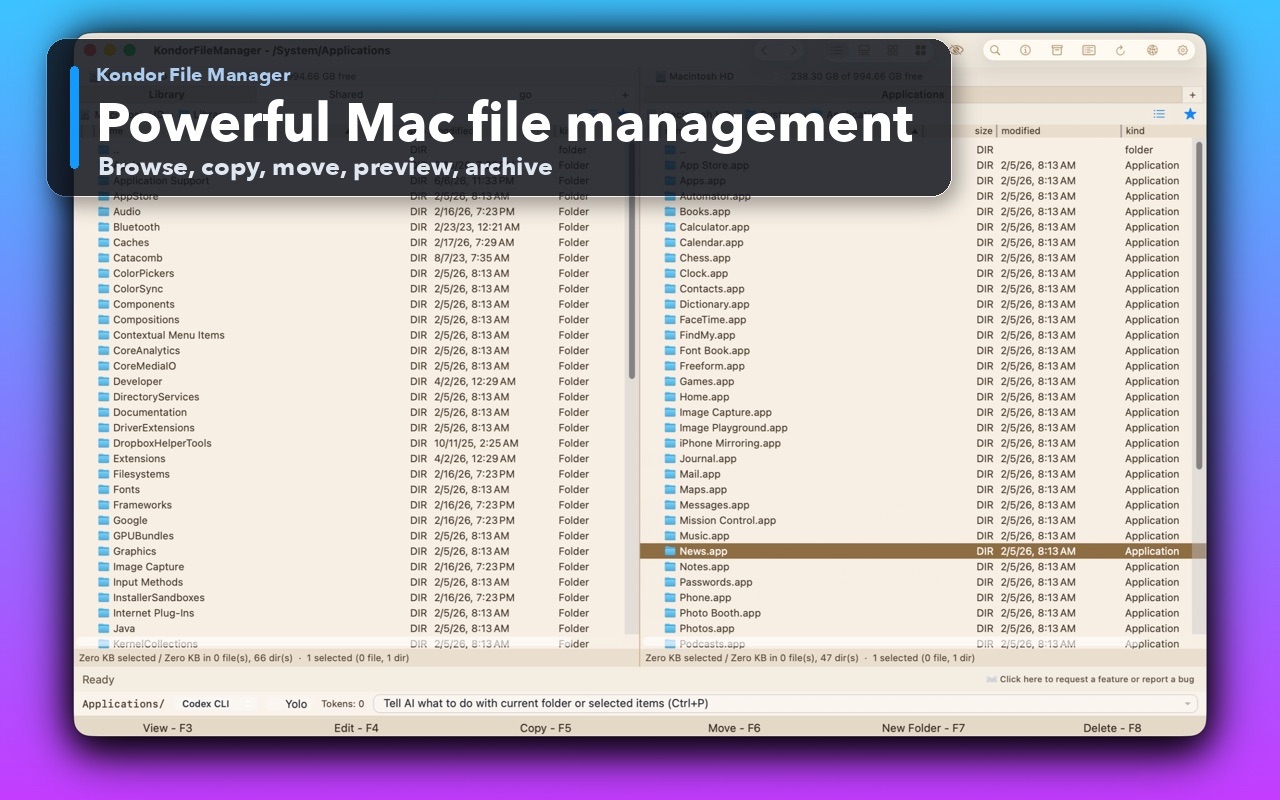
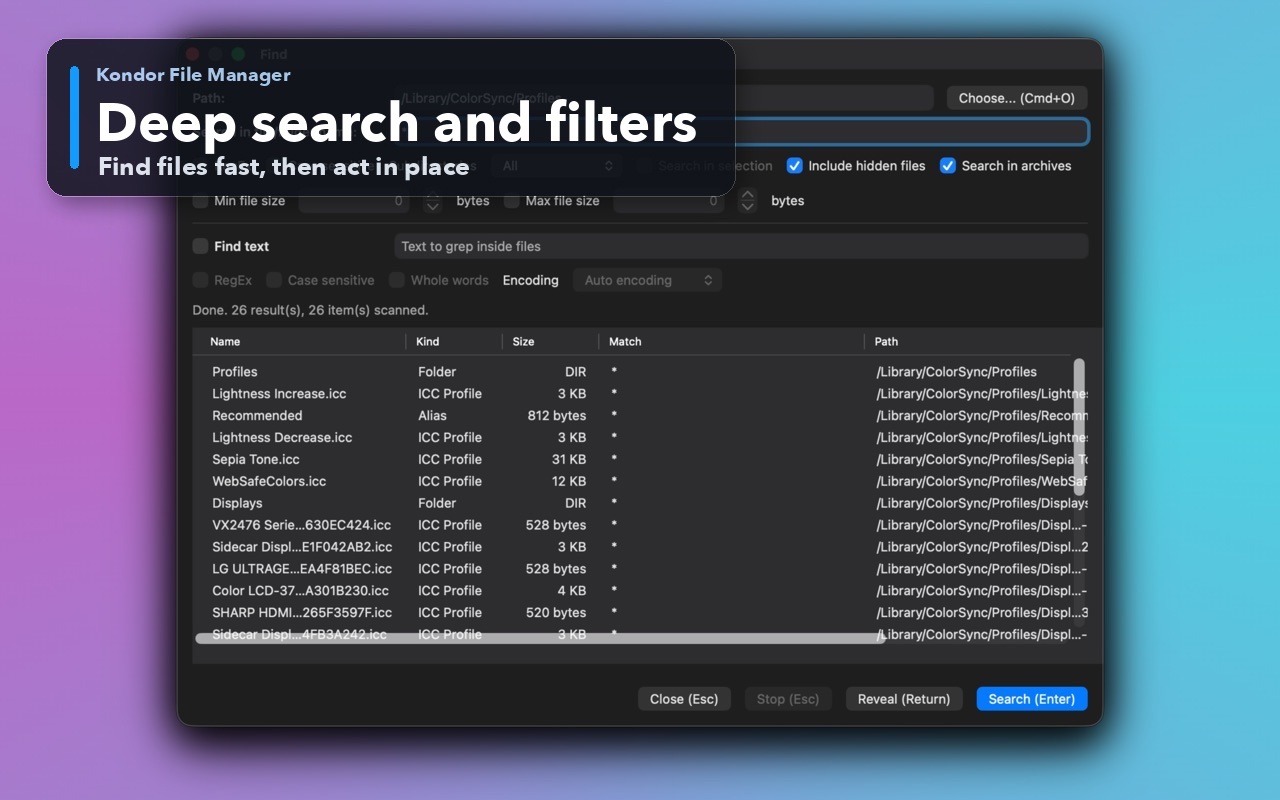
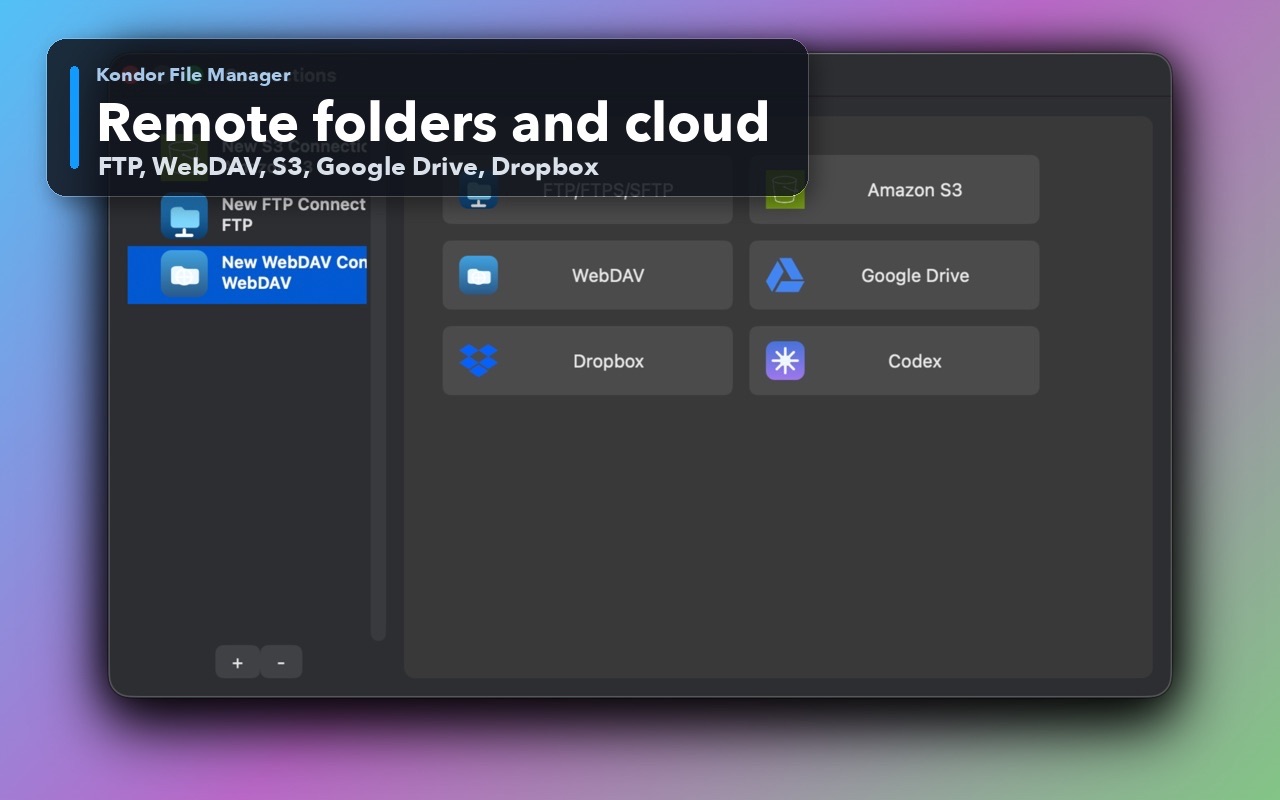
Inspect the real interface before downloading, including the panes, dialogs, and controls used for this job.
Who it helps
Use Kondor when file work needs more control.
Mac power users who want more visible file detail than basic Finder windows provide.
Developers and technical users managing project folders, archives, logs, downloads, and remote files.
Creators who organize images, videos, camera/device files, and media conversion batches.
What slows people down
Where the default workflow gets slow.
Finder is comfortable for everyday browsing, but repeated compare, sync, archive, remote, and media jobs often spill into several separate apps.
Large folders need fast sorting, previews, filters, progress feedback, and reliable keyboard control.
Remote files, cloud providers, archives, and local folders are easier to manage when they stay in one file-work context.
How Kondor helps
Purpose-built surfaces for this workflow.
Match the tool to the repeated job, then keep the rest of your Mac workflow unchanged.
Pro workflows for folder sync, remote/cloud resources, advanced archives, and media conversion.
Local-first file work with limited anonymous diagnostics that users can turn off; user file names, paths, contents, credentials, remote addresses, and command text are excluded.
Workflow examples
Common ways people use this workflow.
Browse and act faster
Keep two locations visible, select files with commander-style control, then copy, move, rename, delete, archive, preview, or inspect without changing tools.
Search, preview, and inspect
Use Kondor for large folders, source files, logs, images, documents, and archives where visibility matters before taking action.
Handle pro file jobs
Use folder sync, remote resources, cloud locations, device workflows where available, and bulk image/video conversion close to the files.
Trust
Why the download is lower risk.
Direct Edition is Developer ID signed, notarized, and distributed as a normal macOS DMG.
Lite is free for local file-manager basics; Pro is $19/year for advanced workflows.
Kondor is built with native AppKit/AppKit-style controls for a compact Mac utility feel.
Related pages
Next useful comparison or guide.
FAQ
Quick answers before you choose.
What is a Mac file manager?
A Mac file manager is software for browsing, organizing, searching, previewing, moving, copying, archiving, and managing files on macOS. Kondor adds a dedicated file-work workspace for jobs that need more control than a basic folder window.
Is Kondor free?
Kondor Lite is free for daily local file-management basics. Kondor Pro is $19/year and unlocks advanced workflows such as remote/cloud resources, folder sync, advanced archives, bulk media tools, and direct-device workflows where available.
Does Kondor replace every Mac utility?
No. Kondor is meant to keep common file-management workflows together. Specialized tools can still be useful for deep media editing, backup, terminal automation, or dedicated transfer jobs.