Mac file management keyboard shortcuts for Finder and Kondor.
Useful Mac file management shortcuts include Option-Command-L to open Downloads, Shift-Command-N to create a Finder folder, Command-I to show item information, Option-Command-P to toggle Finder's path bar, and Command-K to connect to a server. In Kondor's default keymap, F5 copies, F6 moves, F7 creates a folder, F8 deletes, and F2 opens the background task manager. Check the active app and keymap if a shortcut behaves differently.
Finder shortcuts apply while Finder is active; the same keys can mean something else in another app.
Kondor's F-key actions are designed for repeated two-pane file operations and can be remapped.
Some Mac keyboards send brightness or volume controls instead of F-key presses; Kondor can ignore those system assignments from its Hotkeys settings.
Real product evidence
See the KFM workflow before trying it.
Real Kondor screenshots show the file workspace. The steps below explain the controls used for this task.
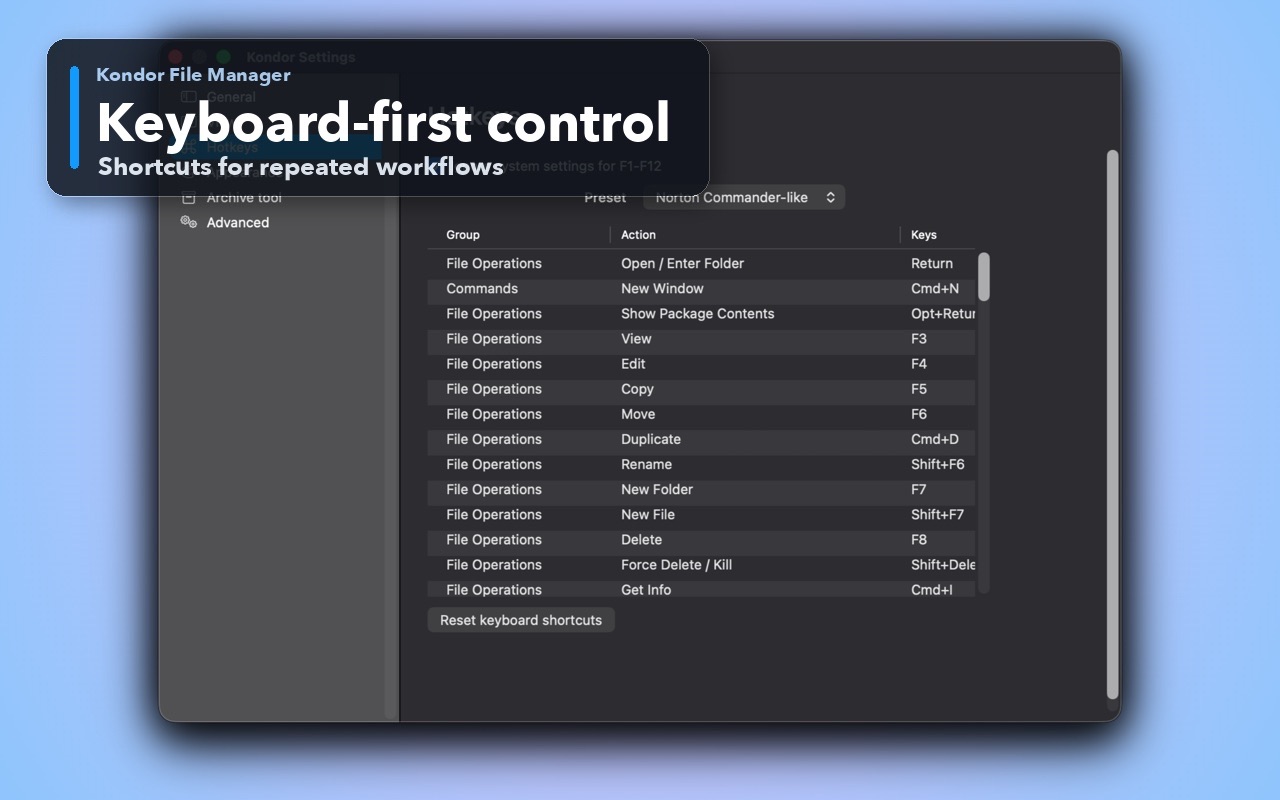
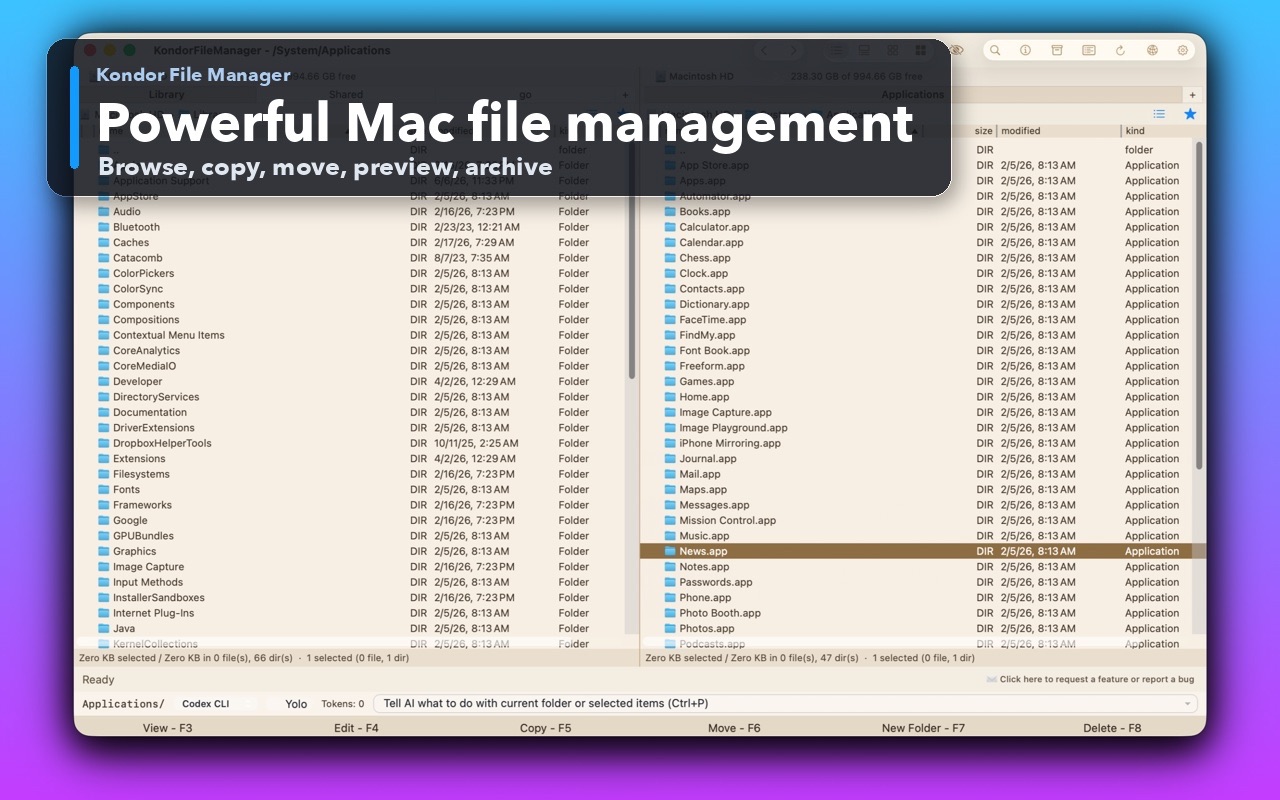
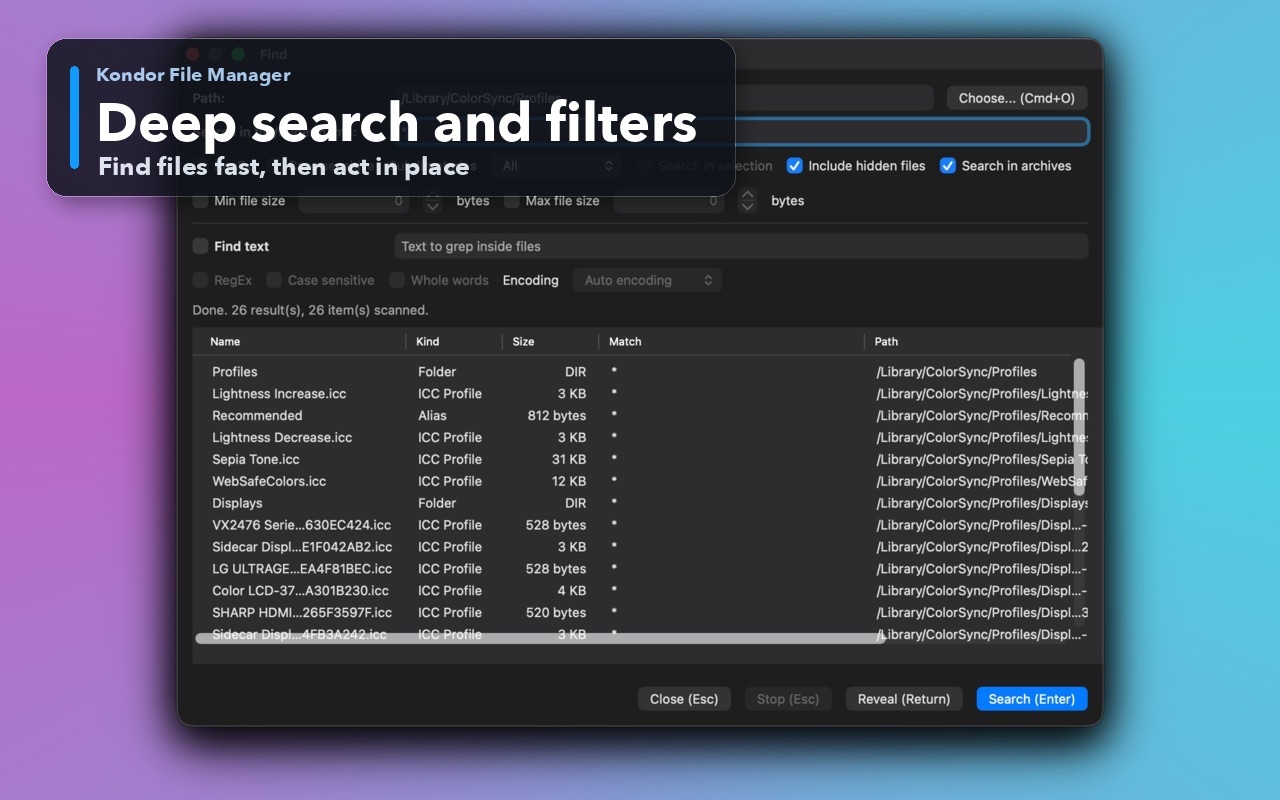
Keyboard-first controlDiscover and customize commands for fast file work without leaving the keyboard.Two-pane Mac file workspaceKeep source and destination folders visible during repeated file operations.Deep search and filtersSearch by name and attributes, with an option to include hidden files.
Step by step
Choose the method that matches the job.
Finder shortcuts for files and folders
Use these macOS shortcuts for common Finder navigation and inspection.
Option-Command-L opens Downloads. Shift-Command-H opens your Home folder, and Shift-Command-I opens iCloud Drive.
Shift-Command-N creates a new folder. Command-I opens Get Info for the selected file, folder, or disk.
Option-Command-P shows or hides the Finder path bar. Command-K opens Connect to Server for an approved network location.
Command-D duplicates the selected item in Finder. Command-E ejects a selected disk or volume after its file work is complete.
Good to know: Finder menu labels are a reliable way to confirm a command and its current shortcut. If a shortcut is disabled or changed in macOS settings, use the menu command instead.
Commander-style shortcuts in Kondor
Use the default Kondor map for direct file actions between two visible panes.
F5 copies the selection to the opposite pane; F6 moves it there.
F7 creates a new folder. F8 deletes the selection using the app's configured delete behavior.
F2 opens the background task manager so you can check a longer copy or move while working elsewhere.
F3 opens the selected item for viewing, and F4 opens it for editing when the selected item and app support that action.
Good to know: Kondor also includes Commander One, Total Commander, and Norton Commander presets. The active shortcut map can be changed in settings; read the menu label before using a destructive action.
Fix a shortcut that does not work
Check focus, keymap, and keyboard settings before assuming the command is unavailable.
Click the Finder or Kondor window where the command should run. Shortcuts are handled by the active app.
Look at the app's menu item to confirm its displayed key equivalent and the command's current name.
In Kondor, open Settings > Hotkeys and confirm which preset or custom mapping is active.
On a MacBook, use Fn or Globe with an F-key when the top row controls brightness or volume. In Kondor, you can also enable Ignore system settings for F1-F12 under Settings > Hotkeys.
Good to know: A shortcut can differ across Finder, Kondor, an external keyboard, and a customized keymap. The menu and Settings > Hotkeys show the active app mapping.
Safety and limits
Keep the useful guardrails.
F-key behavior depends on the active Kondor map and the Mac keyboard's function-key setting.
F6 moves files in Kondor. For an important backup or external-drive transfer, copy first and verify the destination before removing the source.
A shortcut cannot bypass file permissions, network access, or the capabilities of the selected item.
In Finder, press Option-Command-L to open the Downloads folder. You can also select Downloads from the Finder sidebar or Dock.
What is the Mac shortcut to create a new folder?
In Finder, press Shift-Command-N. In Kondor's default keymap, F7 creates a folder in the active pane.
What are the copy and move shortcuts in Kondor?
In Kondor's default keymap, F5 copies selected items to the opposite pane and F6 moves them. Shortcuts can be changed, so check the menu or Hotkeys settings if your setup differs.
Why do function-key shortcuts change the brightness or volume?
Some Mac keyboards use the top row for hardware controls unless Fn or Globe is held. In Kondor, Settings > Hotkeys also includes Ignore system settings for F1-F12, which lets the app receive those keys as shortcuts.