To clean up the Downloads folder on a Mac, open it in Finder with Option-Command-L, switch to List view, and sort by Date Added, Kind, or Size. Move files you want to keep into named folders, verify extracted archives or installed apps before removing their downloads, and send only known temporary files to Trash. For a repeat workflow, use Kondor to preview and move selected files while keeping Downloads and the destination visible together.
Sort by Date Added for recent arrivals, then inspect older files before deciding what they are for.
Treat installers and archives as source files until you confirm the installed app or extracted copy works.
Move retained downloads into a small set of named folders and delete only files you recognize.
Real product evidence
See the KFM workflow before trying it.
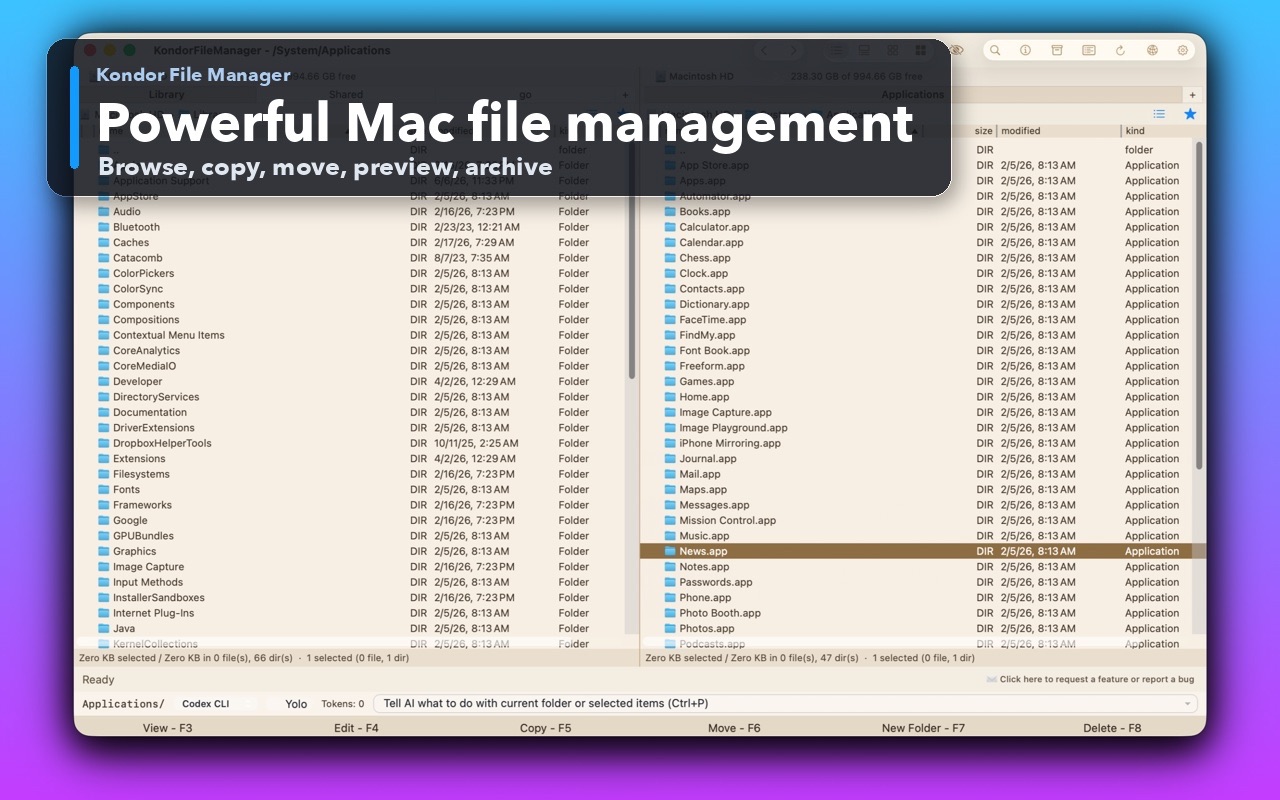
Real Kondor screenshots show the file workspace. The steps below explain the controls used for this task.
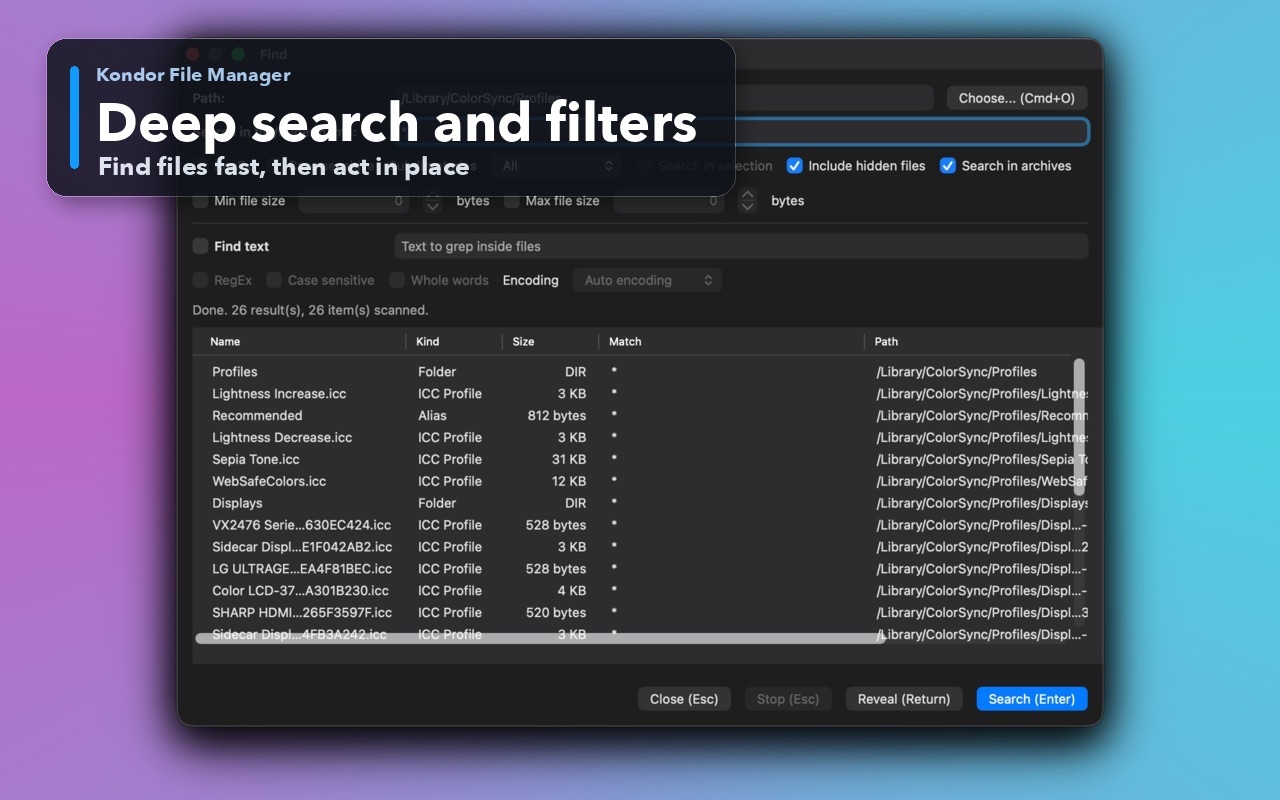
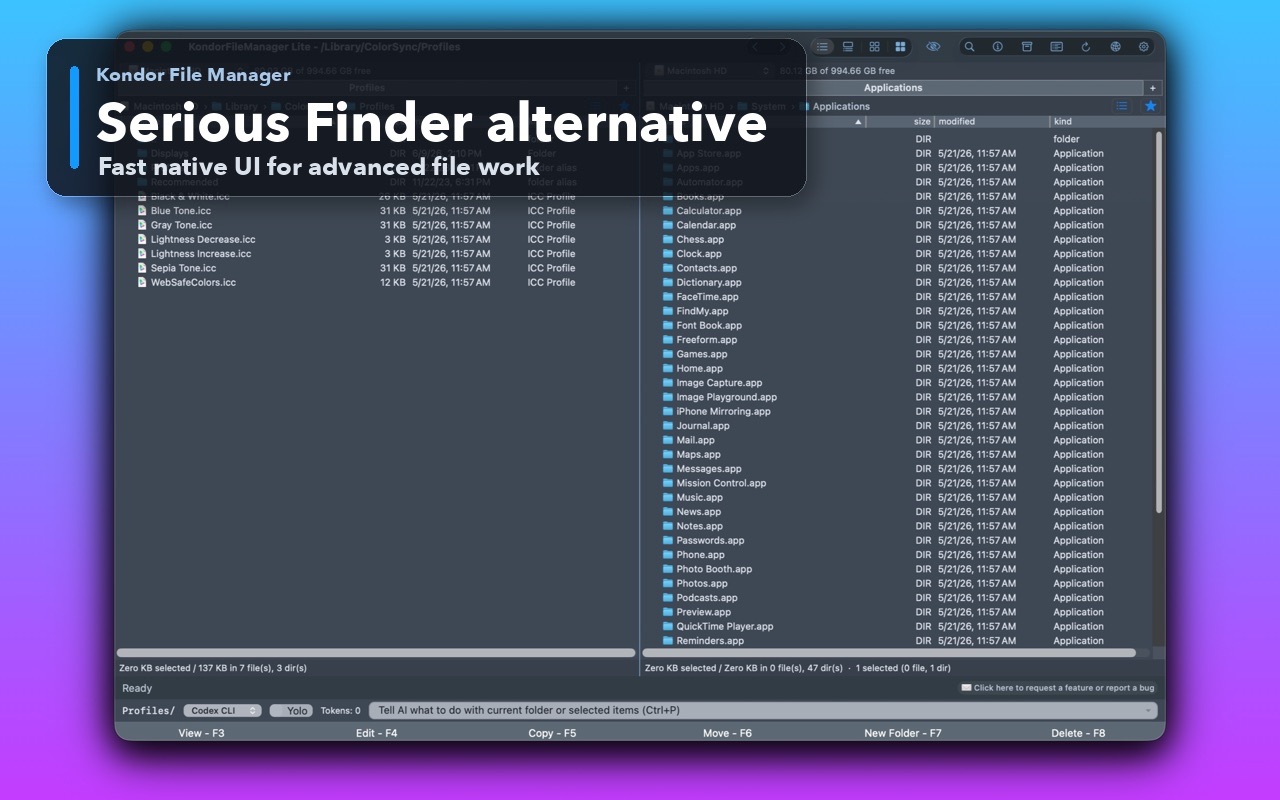
Deep search and filtersSearch by name and attributes, with an option to include hidden files.Two-pane Mac file workspaceKeep source and destination folders visible during repeated file operations.A serious Finder alternativeUse a focused native workspace when a file job needs more control than one Finder window.
Step by step
Choose the method that matches the job.
Method 1: review Downloads in Finder
Use Finder for a quick cleanup or when you want to avoid installing another app.
Open Downloads from the Finder sidebar or press Option-Command-L.
Choose List view. Sort by Date Added to review recent arrivals, Kind to group similar files, or Size to find large items. Sorting changes the view; it does not decide what is safe to delete.
Create a few destination folders that match how you work, such as Documents, Images, Installers to Review, and Project Files.
Move files only after identifying them. Keep anything needed for an active project, an offline reinstall, or a record you are required to retain.
Good to know: Finder's Date Added, Kind, and Size columns help you triage a crowded Downloads folder. An old date alone is not evidence that a file is no longer needed.
Method 2: sort and move a batch in Kondor
Use a two-pane file manager when you are sorting many files into an archive or project folder.
Open Downloads in one pane and the destination folder in the other.
Use the detailed list and preview to identify files before selecting a batch. Filter or sort the list to narrow the visible items.
Select related files and choose New Folder with Selection when a group belongs together, or copy/move the selection to an existing destination.
Check the destination before removing temporary originals. Use the background task manager to monitor a longer move or copy.
Good to know: Grouping similar files into a few destination folders makes future searches more predictable. Keep original downloads that are still your only copy of a project asset or installer.
Decide what to keep, move, or remove
Use these checks before cleaning up installers, archives, and large downloads.
Keep a document or project asset if it is still in use or is not stored elsewhere.
After opening an installer, confirm the application works before deciding whether the original DMG or package is still needed.
After extracting a ZIP archive, compare the extracted files with what you expected before removing the archive.
If a file is unfamiliar, identify its source first. Move it to a review folder rather than deleting it just because it is old or large.
Good to know: The Downloads folder is not a disposable cache. Browser downloads, email attachments, AirDrop files, and app exports may be stored there.
Safety and limits
Keep the useful guardrails.
Removing an installer download does not uninstall the application, but it may remove your only offline copy of the installer.
Deleting a ZIP after extraction is reasonable only after checking that the extracted files are complete and usable.
Cloud-synced folders and shared project folders may have their own retention rules. Confirm those rules before removing files.
In Finder, click Downloads in the sidebar or press Option-Command-L. The Downloads folder may also appear in the Dock.
What is the safest way to clean up Mac Downloads?
Sort by Date Added, Kind, or Size, identify each file, and move anything you want to keep into a named folder. Delete only known temporary files after confirming that another needed copy exists.
Can I delete DMG and ZIP files after using them?
Often, but check first. Keep a DMG or package if you need an offline installer, and keep a ZIP until you have confirmed that its extracted files are complete and useful.
How can I organize several Downloads files into a new folder?
Select related items and move them into an existing folder, or use Finder's New Folder with Selection command. Kondor provides the same kind of grouping while showing the source and destination in separate panes.