How to copy files from multiple folders into one folder on Mac.
For a few locations, use Finder's Command-C and Command-V to copy each selection into one destination. For a larger multi-folder job, add items to Kondor Pro's Collect Shelf as you browse, open a local destination pane, review the collected set, and choose Copy Here. Clearing the Shelf removes references, not source files.
Copy keeps the original locations intact. Choose Move only when you intend to remove those source entries after a successful transfer.
Collect Shelf is a Pro tray of references, not a second copy of the files or an independent backup.
Two files from different folders can share a filename. Review collisions before combining them in one destination.
Real product evidence
See the KFM workflow before trying it.
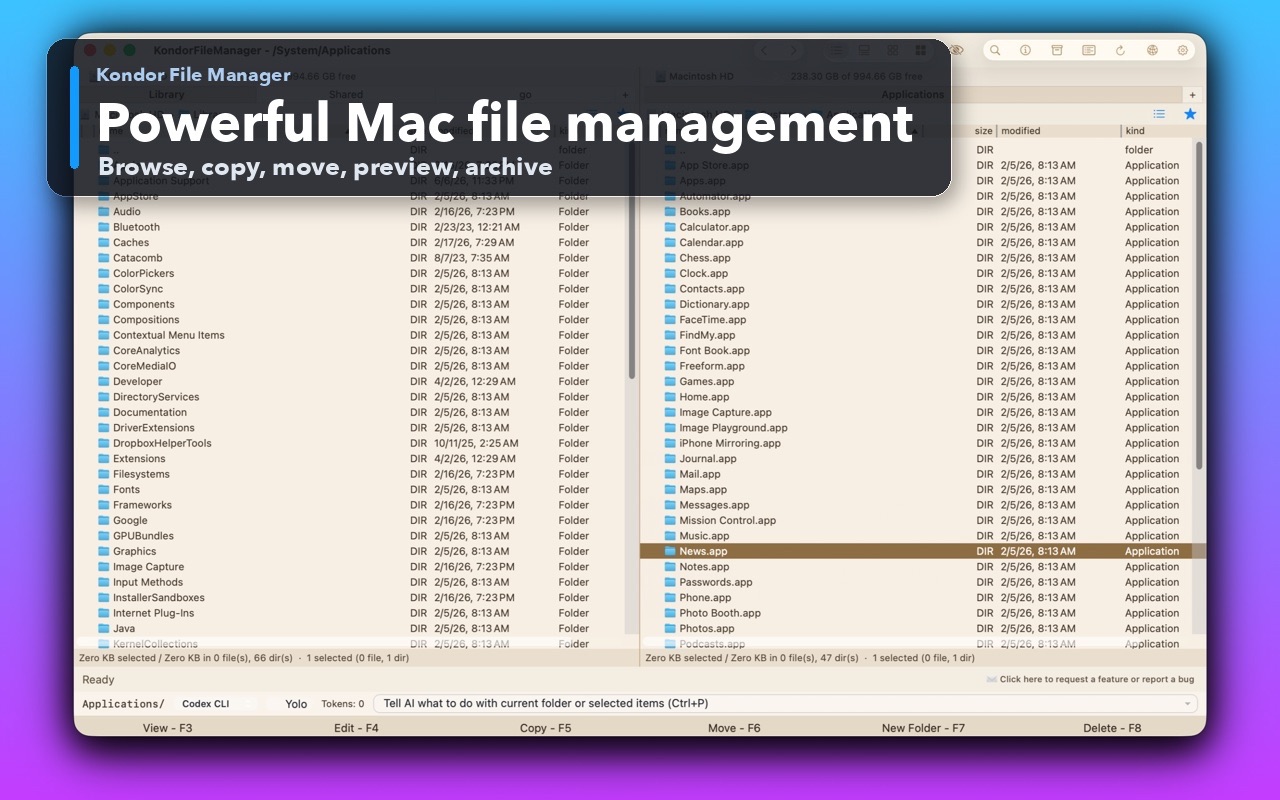
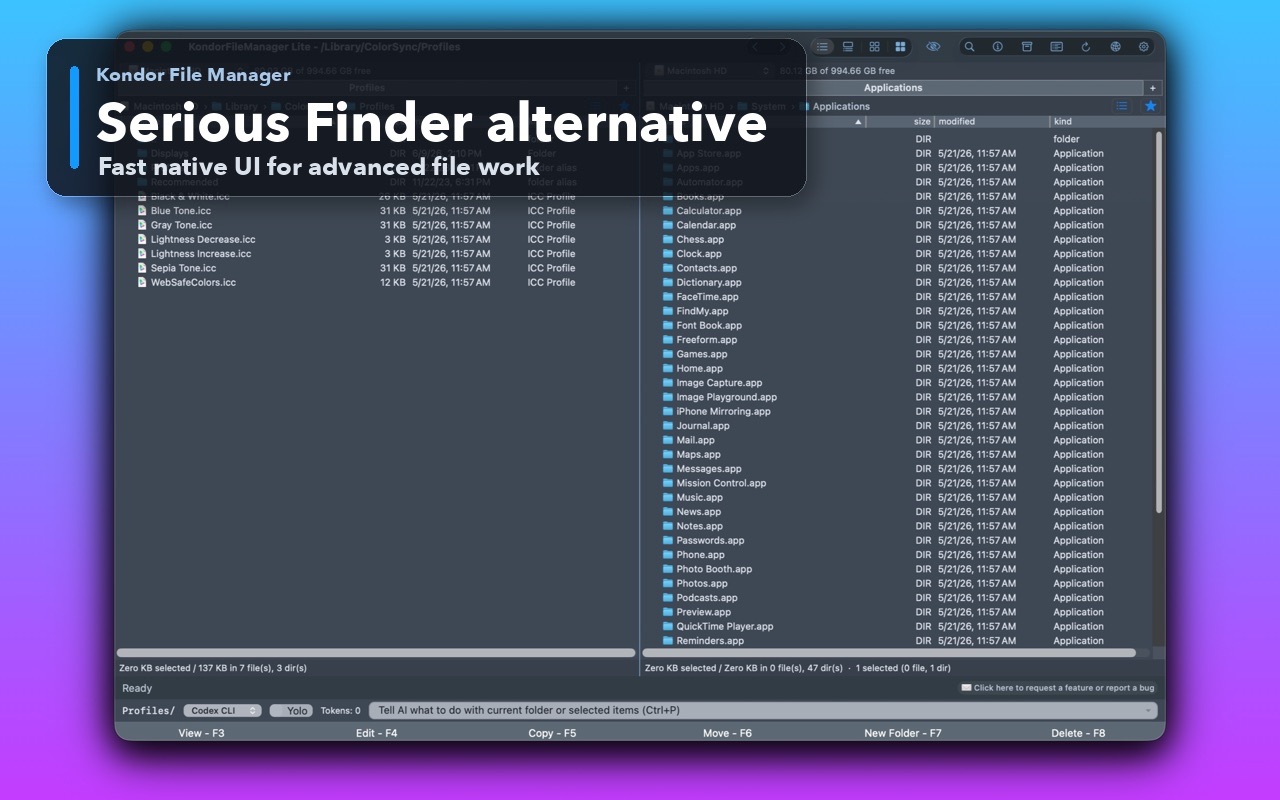
Real Kondor screenshots show the file workspace. The steps below explain the controls used for this task.
Two-pane Mac file workspaceKeep source and destination folders visible during repeated file operations.A serious Finder alternativeUse a focused native workspace when a file job needs more control than one Finder window.
Step by step
Choose the method that matches the job.
Use Finder for a short list of source folders
Two or three selections when you can keep track of the delivery manually.
Create or open a dedicated destination folder for the delivery.
In the first source folder, select the required files and press Command-C.
Open the destination and press Command-V. Repeat with each remaining source folder.
Read any duplicate-name prompt carefully. A matching filename does not tell you whether the incoming file is newer, identical, or a different document.
Compare the delivery against your checklist and open representative files before sending it.
Good to know: If you need to preserve each source folder's structure, copy those folders as folders. Gathering every child into one directory is flattening, which changes the organization.
Review one collected set in Kondor Pro
A multi-source delivery where navigation should not destroy the working selection.
Show Collect Shelf with Command-Option-C or View > Interface > Collect Shelf.
Browse to a source folder, select its required items, and choose Files > Add to Collect Shelf or press Command-Control-C. Repeat in the other source folders.
Review the Shelf and remove references you do not need. This changes the collection, not the original files.
Open the intended local destination in the target pane. Select the collected items you want and choose Copy Here.
Review the transfer plan and any conflicts, then check the destination. Clear the Shelf with its brush button after the delivery is verified.
Good to know: Remote, archive, and device references remain virtual until an action needs their content. Their capabilities, permissions, and connection state still apply; start with ordinary local files for a simple delivery.
Worked examples
Check the result you should expect.
Build a client handoff without rearranging projects
Collect these three files and use Copy Here with Client Delivery as the destination. Their original locations remain intact. If two inputs were both named brief.pdf, resolve that conflict rather than silently replacing one.
Safety and limits
Keep the useful guardrails.
A Shelf reference can become stale when its source is moved, deleted, disconnected, or no longer permitted. Adding a reference does not freeze the source bytes.
Cross-provider Move is not always available. Prefer Copy when you need a reviewed delivery without depending on transactional moves across unrelated resources.
Copying files out of an app-managed package or library can omit relationships and metadata that the owning application expects. Use its export command when appropriate.
Can I gather files without copying them immediately?
Yes. Kondor Pro's Collect Shelf keeps references while you browse other folders. A later action such as Copy Here resolves the references and performs the actual work.
Does Clear Collect Shelf delete my files?
No. It removes the collected references from the tray. Deleting a source file is a separate file operation.
What happens if two collected files have the same name?
They conflict when copied into the same destination folder. Review the conflict before proceeding; rename a file or keep separate subfolders when both must survive.
Can I compress or hash the collected files?
Collect Shelf exposes supported actions including compression, hashes, sharing, batch rename, and image tools. Availability depends on each item's resource and the selected action.