In Terminal, run shasum -a 256 followed by the quoted file path, then compare all 64 hexadecimal characters with the publisher's SHA-256 value. In Kondor Lite, select one local file, choose Files > Verify by Hash, select SHA-256, paste the expected hash, and run verification.
A SHA-256 value identifies file bytes. Comparing filenames or file sizes alone cannot detect every changed download.
Get the expected checksum from a trusted publisher channel. A hash supplied alongside an untrusted file does not establish who made it.
Hash verification is available in Kondor Lite. It is separate from macOS code signing, notarization, and malware checks.
Real product evidence
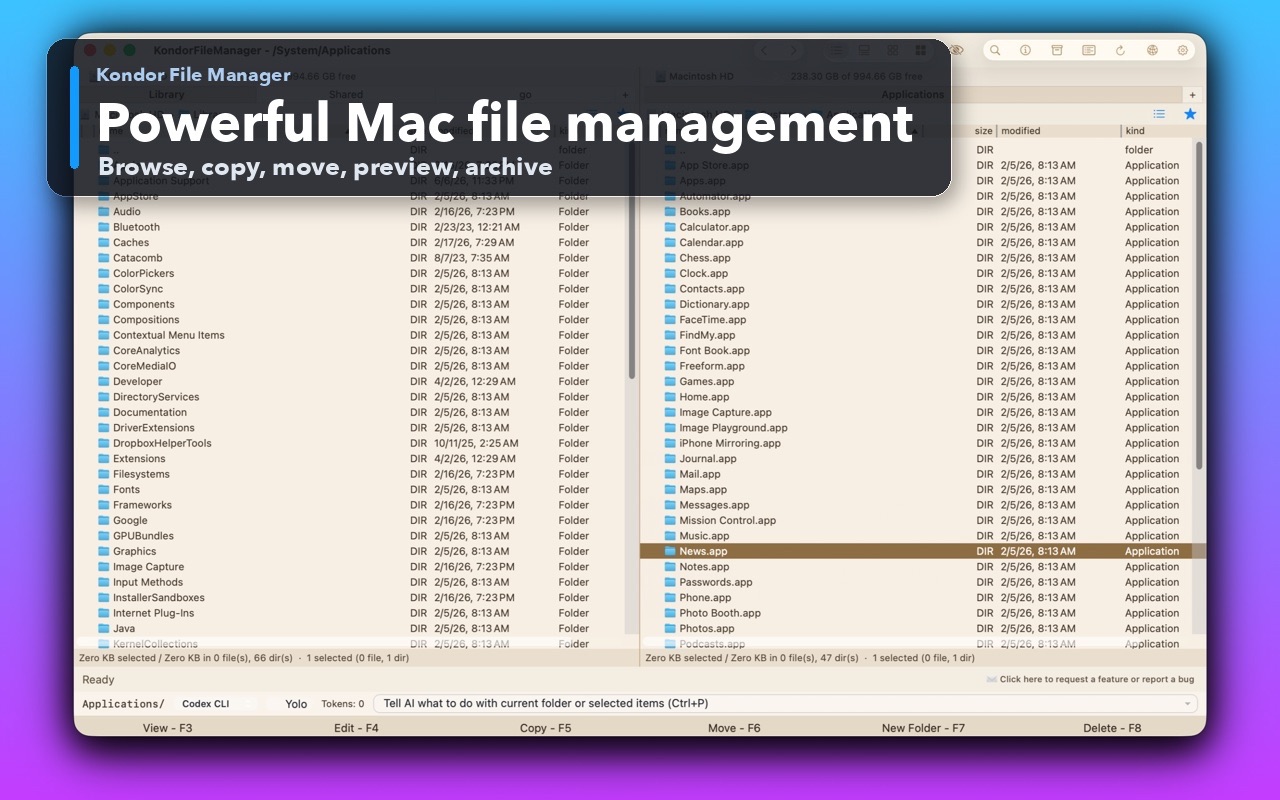
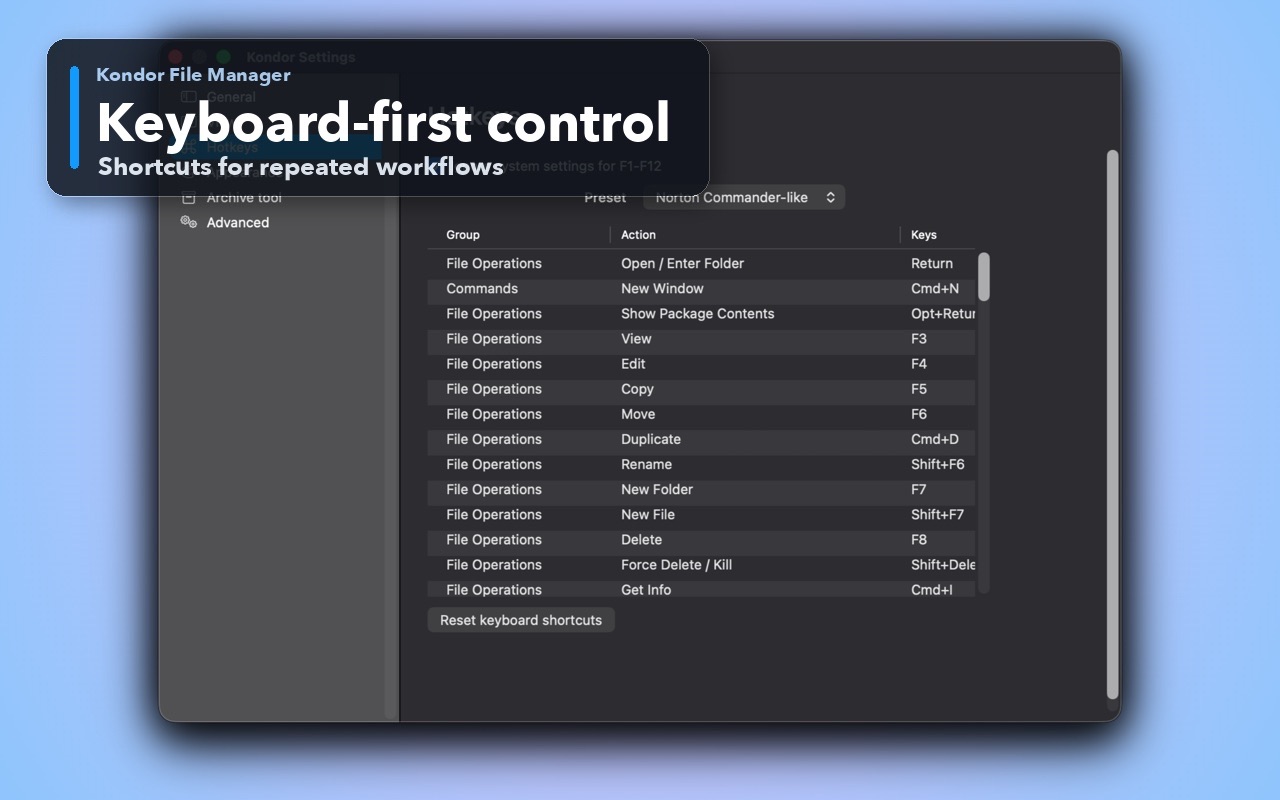
See the KFM workflow before trying it.
Real Kondor screenshots show the file workspace. The steps below explain the controls used for this task.
Two-pane Mac file workspaceKeep source and destination folders visible during repeated file operations.Keyboard-first controlDiscover and customize commands for fast file work without leaving the keyboard.
Step by step
Choose the method that matches the job.
Calculate SHA-256 with the built-in Terminal tool
One download and an expected checksum from its publisher.
Find the publisher's checksum for the exact version and download variant. Apple silicon and Intel packages can have different values.
Open Terminal and type shasum -a 256 followed by a space. Drag the downloaded file from Finder into Terminal to insert its escaped path.
Press Return and wait for the hash. Large files take longer because the command must read the complete file.
Compare the full 64-character value with the published SHA-256. If it differs, check the algorithm, package version, and download completeness before trying again.
Good to know: This command reads the file; it does not run the installer or modify its contents. A trailing filename in the output is not part of the checksum.
Paste an expected hash into Kondor Lite
A clear match or mismatch result without manually comparing long strings.
Open the download folder in Kondor and select exactly one local file.
Choose Files > Verify by Hash or press Control-Shift-V with the default keymap.
Choose the algorithm used by the publisher, paste the expected hash, and start verification. Use SHA-256 for a published SHA-256 value.
Read the match result. For several files without expected values, use Files > Calculate Hashes and copy a selected hash from its context menu.
Good to know: Kondor calculates hashes by streaming file data. Keep the file unchanged while verification runs; a file still downloading is not ready to verify.
Worked examples
Check the result you should expect.
Check a downloaded disk image
Input or command
shasum -a 256 "$HOME/Downloads/example.dmg"
Expected result
A 64-character SHA-256 value, followed by the file path
Replace example.dmg with your real filename. Compare the value with the publisher's checksum for that exact DMG. This is a command example, not a checksum for a real download.
Safety and limits
Keep the useful guardrails.
A matching checksum confirms agreement with the supplied value; it does not prove a file is safe to execute.
An MD5 or SHA-1 checksum cannot be compared with a SHA-256 calculation. Select the same algorithm on both sides.
If a re-downloaded file still differs, contact the publisher rather than bypassing a security warning.
How do I check a SHA256 hash on Mac without installing software?
Use the built-in shasum -a 256 command in Terminal, followed by the file path. Compare its full hash with the publisher's expected SHA-256.
Why does my downloaded file's checksum not match?
Common causes are an incomplete download, a different release or processor variant, the wrong algorithm, or changed bytes. Check these details and download a fresh copy from the publisher.
Can I check a checksum without uploading the file?
Yes. Terminal and Kondor's local hash verification read the file on your Mac. You do not need to upload a private archive or large download to an online hash website.
Does a matching SHA-256 mean an installer is trustworthy?
Only if you trust the expected value and its source. Keep macOS signing and notarization checks in place as well; a checksum is not a malware scan.