Double-clicking is the shortest path for one ordinary ZIP file because macOS includes Archive Utility. Kondor Pro is useful when you need the archive and destination visible, want to extract several selected archives, or need the operation to stay inside a larger file workflow.
Archive Utility is the built-in answer for a normal one-off ZIP file.
Kondor Pro helps when the destination, multiple archives, and progress need to remain visible.
Keep the archive until you have opened representative extracted files and confirmed the result.
Real product evidence
See the KFM workflow before trying it.
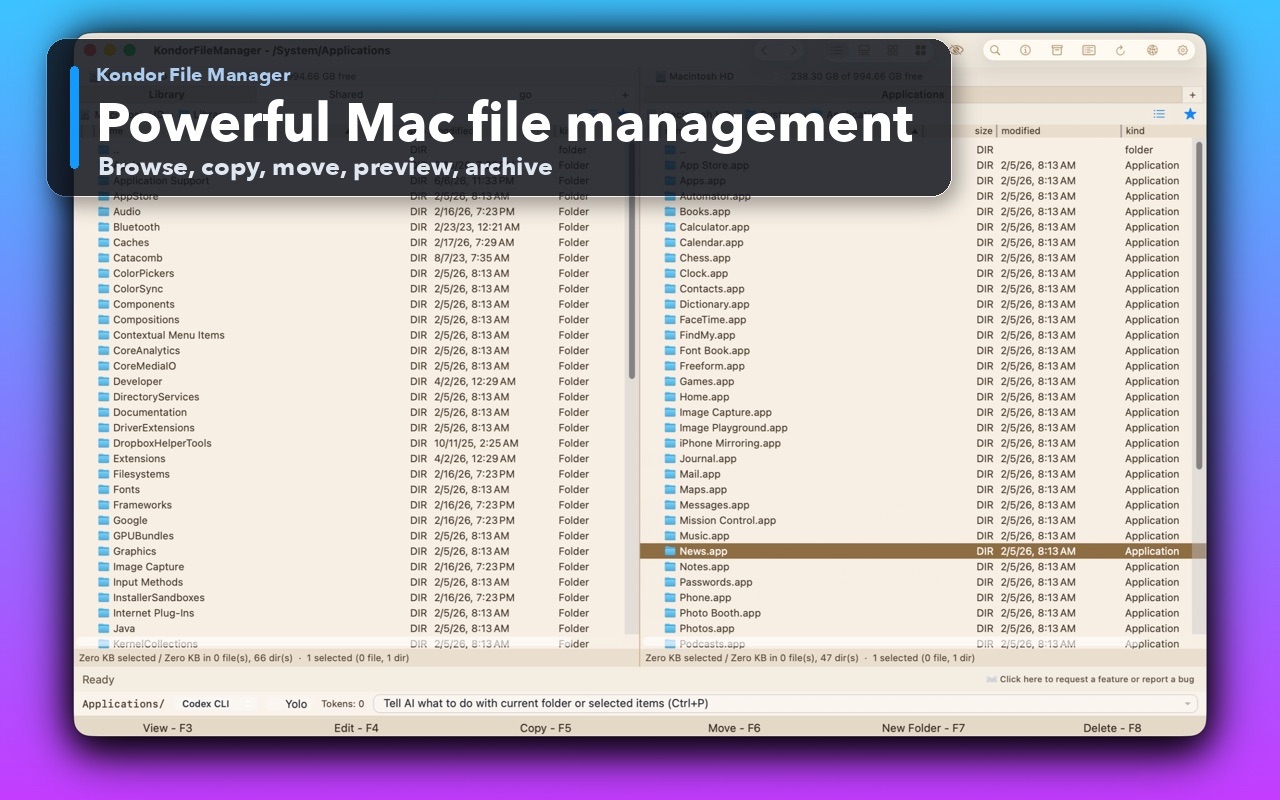
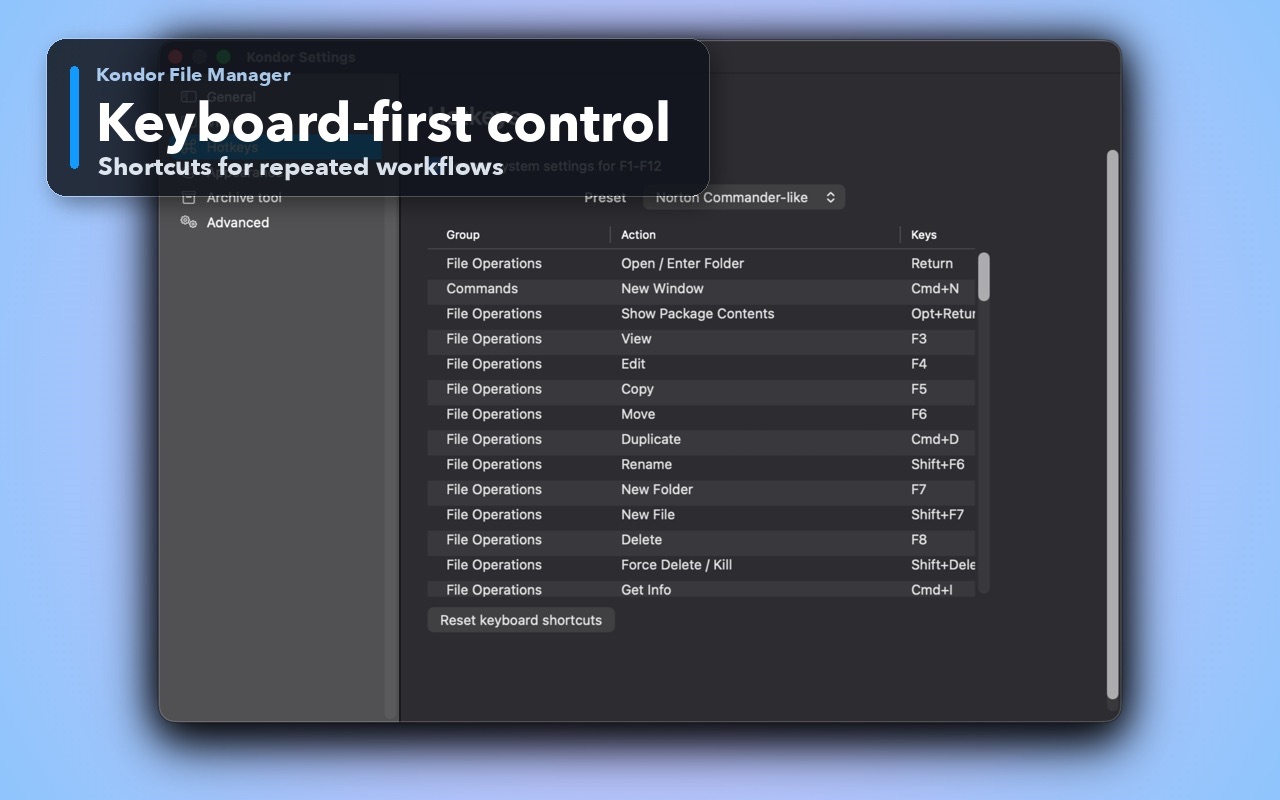
These screenshots show the exact product surfaces referenced in this guide.
Two-pane Mac file workspaceKeep source and destination folders visible during repeated file operations.Keyboard-first controlDiscover and customize commands for fast file work without leaving the keyboard.
Step by step
Choose the method that matches the job.
Method 1: use Archive Utility
Best for one ordinary ZIP file with no destination planning.
Locate the ZIP file in Finder.
Double-click it. Archive Utility extracts the contents into the same folder.
Open the extracted folder and check a few files.
Keep or remove the original ZIP only after the extracted contents are confirmed.
Good to know: To create a ZIP instead, Control-click a file or folder in Finder and choose Compress. macOS keeps the original and creates a separate archive.
Method 2: extract to the opposite pane with Kondor Pro
Best for multiple archives, a chosen destination, or a repeat archive workflow.
Open the folder containing the ZIP files in one pane and the destination folder in the other.
Select one or more supported archives.
Press Option-F9, choose Files > Extract to, or use Extract to from the context menu.
Confirm the destination and whether each archive should use its own folder, then start extraction.
Watch progress, inspect the output in the opposite pane, and keep the source archives until verification is complete.
Good to know: Kondor's advanced archive tools are a Pro feature. Supported formats and password behavior can vary by archive type and build.
Safety and limits
Keep the useful guardrails.
A damaged or incomplete download may not extract. Download it again or ask the sender for a new copy.
Extraction needs enough free space for the expanded contents, which may be much larger than the ZIP file.
Treat unexpected apps, scripts, installers, and executable files from an untrusted archive as a security risk.
Password-protected, split, or uncommon archive formats may require additional handling or a different tool.
How do I unzip a file on Mac without installing an app?
Double-click the ZIP file in Finder. The built-in Archive Utility extracts it into the same folder.
Where do extracted ZIP files go on Mac?
Archive Utility normally places the extracted item beside the ZIP file. Kondor lets you keep a chosen destination visible in the opposite pane.
Why will a ZIP file not open on my Mac?
The download may be incomplete or corrupt, the disk may lack free space, or the archive may use an unsupported or password-protected format. Try a fresh download and confirm available storage first.
Can Kondor extract multiple ZIP files at once?
Yes. Select the supported archives, set the destination in the opposite pane, and use Extract to. Review the destination and folder-per-archive option before starting.