How to rename multiple photos on Mac with a clear sequence.
In Finder, select the photos, Control-click, choose Rename, and use Format to add a name and sequence. In Kondor Lite, select local photos, choose Files > Batch Rename, enter a pattern such as Shoot-{n}, keep Preserve extension on, and inspect the complete preview before applying it.
Renaming changes filenames, not image format or resolution. Changing .heic to .jpg does not convert a photo.
The sequence should reflect the delivery order you actually want. Check the preview rather than assume filename order equals capture time.
Kondor Lite includes local Batch Rename with conflict checking and Undo/Redo. A full photo library backup remains worth keeping.
Real product evidence
See the KFM workflow before trying it.
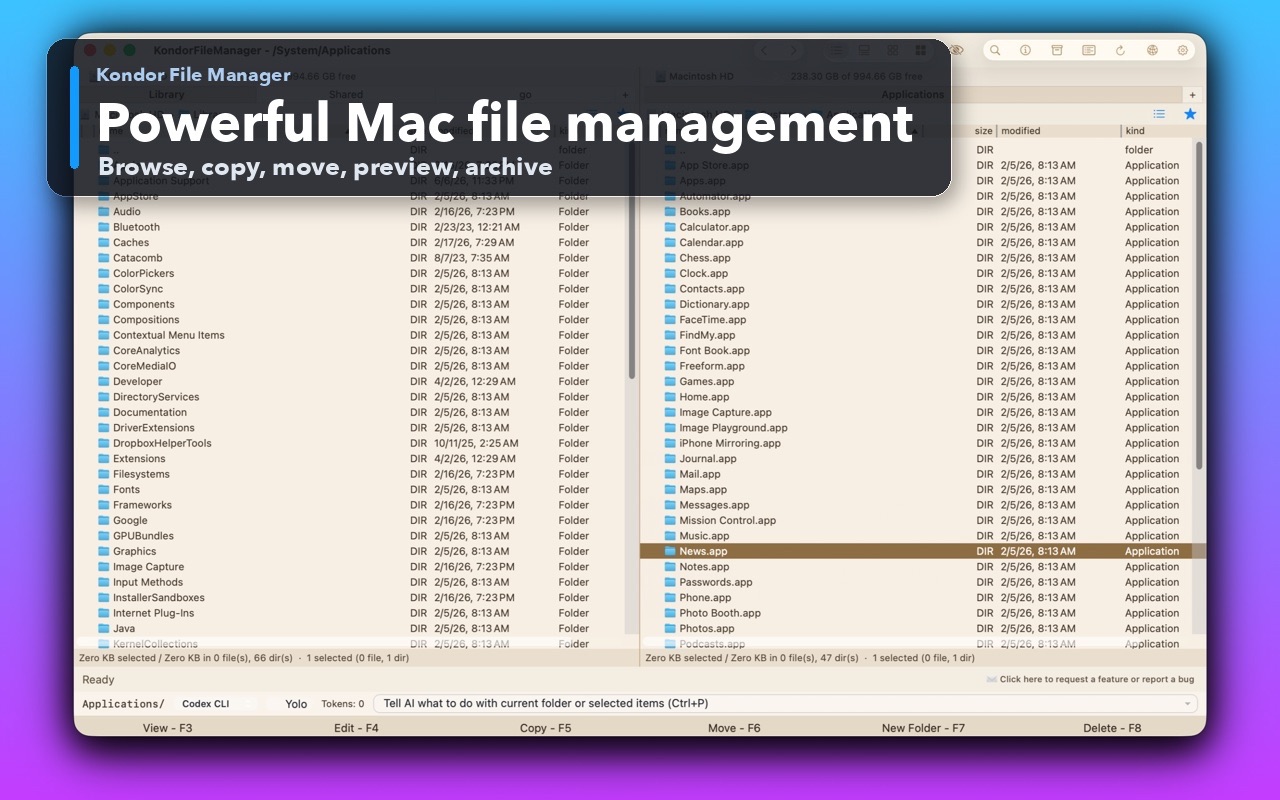
Real Kondor screenshots show the file workspace. The steps below explain the controls used for this task.
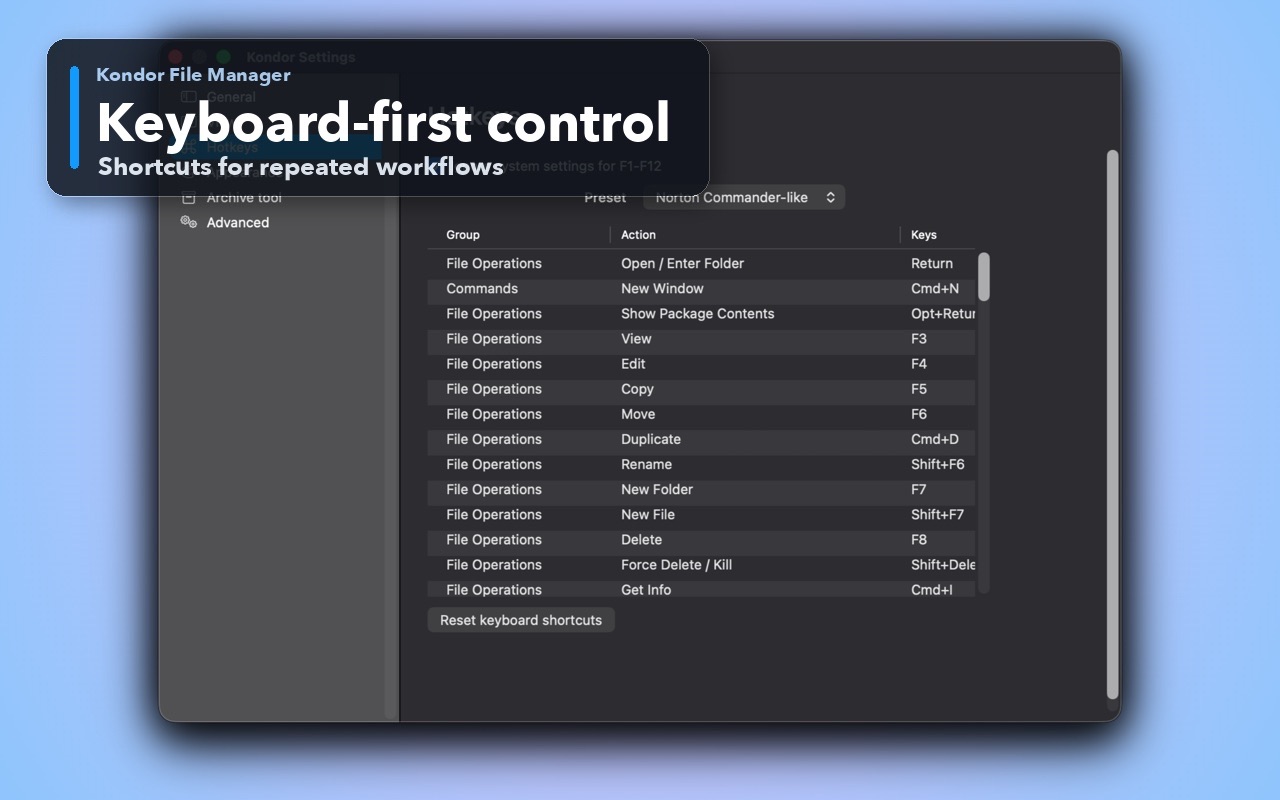
Two-pane Mac file workspaceKeep source and destination folders visible during repeated file operations.Keyboard-first controlDiscover and customize commands for fast file work without leaving the keyboard.
Step by step
Choose the method that matches the job.
Use Finder for a simple shared label
A small batch that needs one name and increasing numbers.
Work on exported photo files in a normal folder. If the originals live in Photos, export copies instead of renaming items inside its library package.
Select the images in Finder, Control-click the selection, and choose Rename.
Select Format, choose a name-and-index style, enter a custom name, and choose a starting number. Check the example shown in the dialog.
Apply Rename, then inspect the first, last, and a few middle filenames. Use Edit > Undo immediately if the result is not what you intended.
Good to know: Finder also offers Add Text and Replace Text. Use those when the existing camera numbers should remain recognizable.
Build a checked rename plan in Kondor Lite
A delivery with padding, replacements, or existing filenames that must stay traceable.
Select the local photo files in Kondor. Choose Files > Batch Rename or press Control-Shift-F6 with the default keymap.
Enter Shoot-{n} in Name pattern, set Sequence starts to 1, and set Digits to 3 for numbers such as 001.
Leave Preserve extension enabled. To retain the original camera name, use a pattern such as Shoot-{n}-{name} instead.
Inspect every Current name, New name, and Status row. Correct collisions and unwanted ordering before applying the plan.
Apply the rename and verify the folder. If a related app depends on those paths, update or relink it before deleting any backup.
Good to know: Kondor's {date} token uses file modification date, not the photo's EXIF capture date. For capture-time naming, use a tool that explicitly reads EXIF capture dates.
This example assumes the two files appear in that order in the rename preview. {name} keeps the stem available when you need a reversible reference to the camera filename.
Safety and limits
Keep the useful guardrails.
RAW+JPEG pairs and sidecar files may need matching stems. Inspect each companion before running separate batches.
Changing names can break references in an editing project, catalog, script, or shared document. Export a delivery copy when the originals must keep their paths.
Batch Rename operates on local files and folders. Materialize cloud placeholders locally before relying on a completed rename.
Can I batch rename pictures on Mac without another app?
Yes. Select them in Finder, Control-click, and choose Rename. Format creates a shared label and sequence; Add Text and Replace Text keep more of the original filename.
How do I rename photos 001, 002, 003 on Mac?
In Kondor's Batch Rename, use {n} in the name pattern, set the starting number to 1, and set Digits to 3. Review the proposed order before applying.
Will renaming a HEIC file to JPG convert it?
No. The extension is only part of the name. Use an image converter to create real JPEG data, and keep the HEIC original until you have checked the exported copy.
Can I undo a batch rename in Kondor?
Kondor supports Undo/Redo for completed local batch rename operations. Keep backups for important work, and avoid relying on undo history as a permanent record after other changes or app restarts.