You can convert a small batch with Preview, which is already on your Mac. For repeat folder work, Kondor Pro keeps the source images, destination folder, previews, and conversion action in one two-pane workspace.
Preview is the fastest no-install option for an occasional batch.
Kondor Pro is better suited to repeated jobs where source and output folders should stay visible.
JPEG improves compatibility, but it may not preserve every HEIC characteristic. Keep the originals until the output is checked.
Real product evidence
See the KFM workflow before trying it.
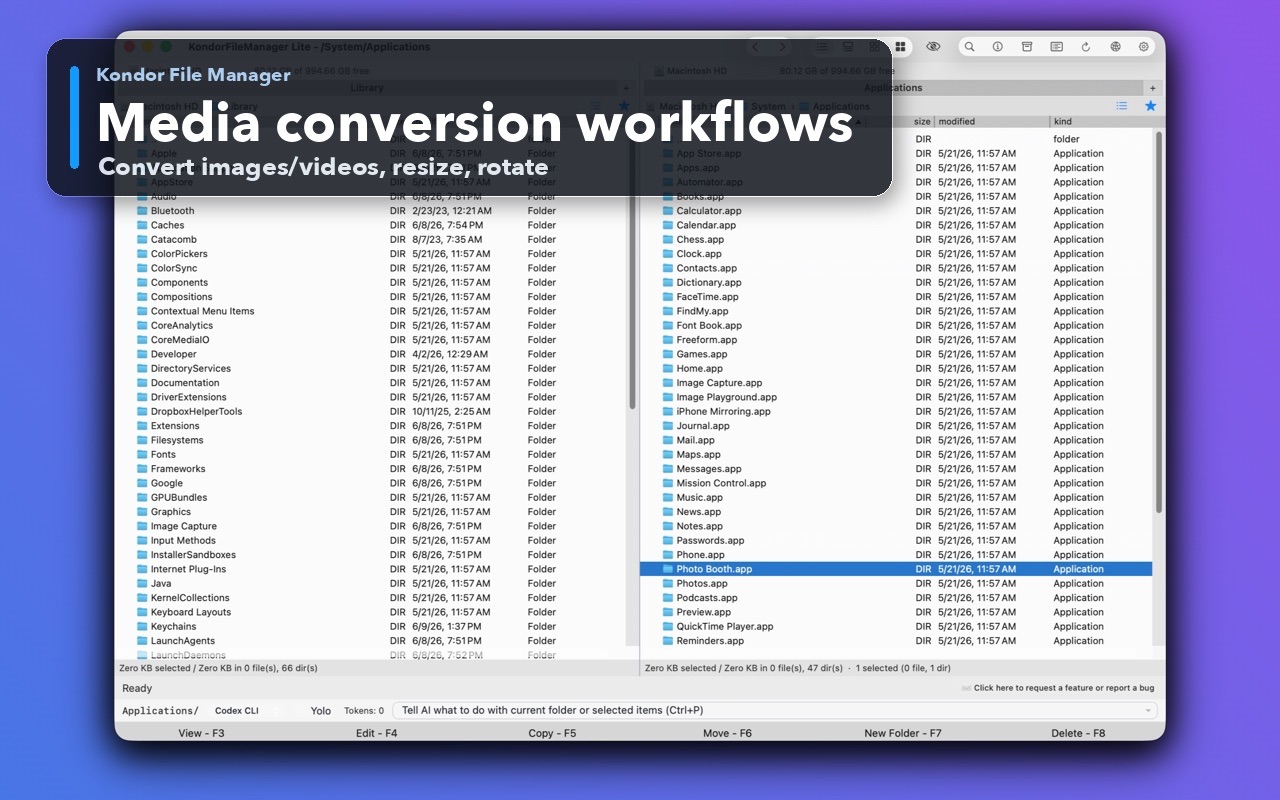
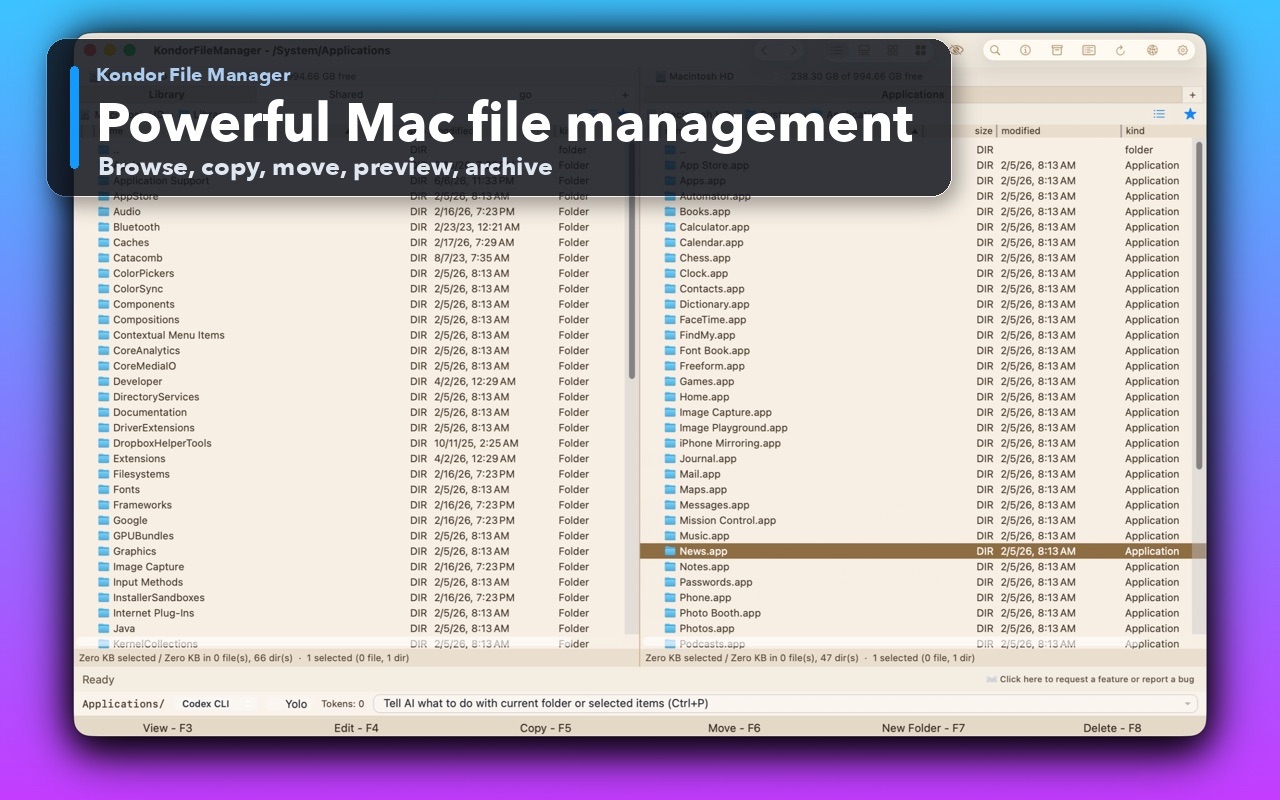
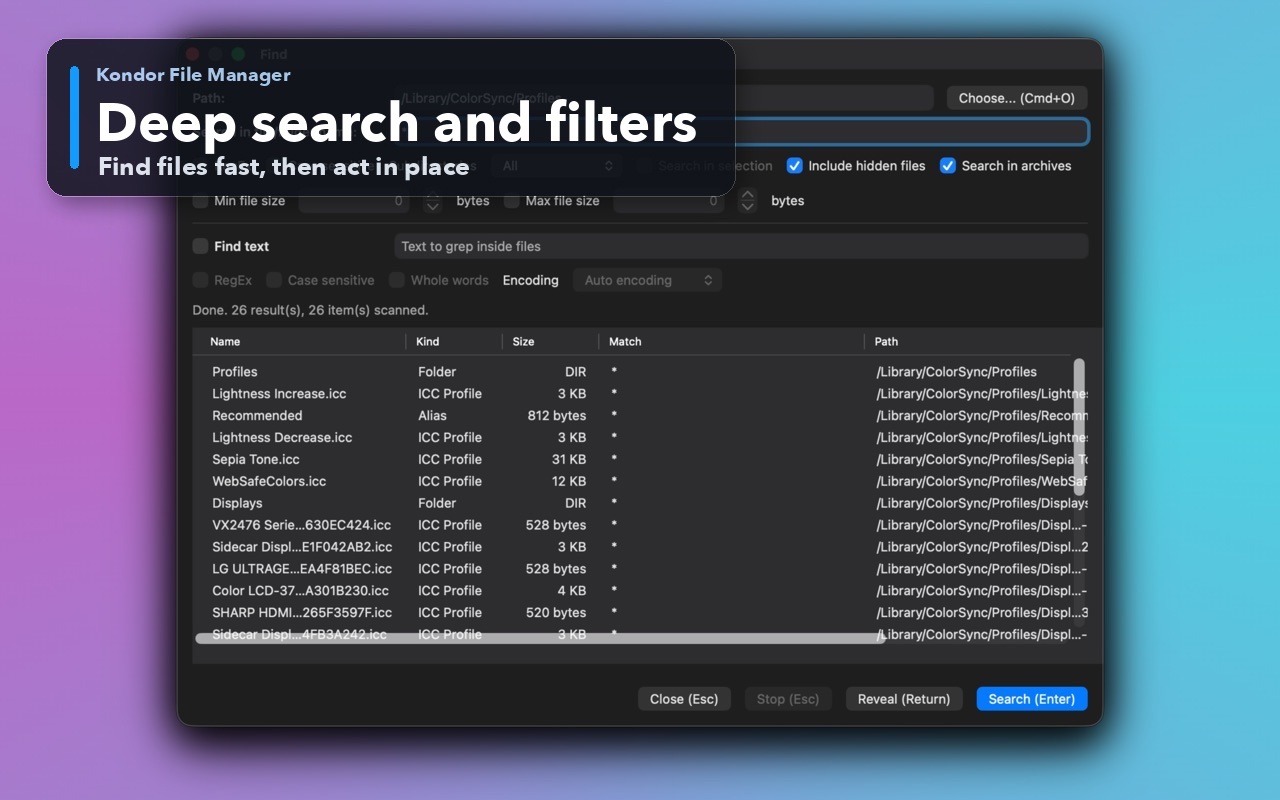
These screenshots show the exact product surfaces referenced in this guide.
Media conversion workflowsConvert and prepare image or video batches close to their source and destination folders.Two-pane Mac file workspaceKeep source and destination folders visible during repeated file operations.Deep search and filtersSearch by name and attributes, with an option to include hidden files.
Step by step
Choose the method that matches the job.
Method 1: use Preview
Best for a quick, occasional batch with no additional app.
In Finder, select the HEIC files, Control-click the selection, and open them with Preview.
Make sure the images appear in one Preview window, then select the thumbnails you want to convert.
Choose File > Export, select JPEG as the format, choose quality and destination, then save.
Open several exported files and compare them with the originals before deleting anything.
Good to know: Preview is built into macOS and is usually the shortest path when the output location does not need a dedicated two-pane workflow.
Method 2: use Kondor Pro
Best for repeat batches, large folders, or visible source-to-destination work.
Open the HEIC source folder in one pane and the output folder in the other pane.
Select the HEIC images you want to convert. Preview or sort first if the folder contains similar files.
Choose Files > Convert to. The default Norton Commander-like keymap uses Option-F8, and Kondor shows the current shortcut in its menu.
Select JPEG, set the quality, and leave source deletion off for the first run.
Start the conversion, review the output in the opposite pane, and keep the HEIC originals until you confirm the results.
Good to know: Kondor's batch conversion is a Pro feature. JPEG, PNG, HEIC, and TIFF image output use native macOS image frameworks; helper-backed formats depend on the installed build and helper availability.
Safety and limits
Keep the useful guardrails.
Converting to JPEG is lossy. Repeated conversions can reduce image quality.
JPEG does not support transparency and may not preserve every HEIC metadata, color, or high-dynamic-range characteristic.
Use a short test batch before processing an irreplaceable photo library.
For Photos library originals, export copies first rather than editing inside the library package.
Can I convert multiple HEIC files to JPG at once on a Mac?
Yes. Preview can export a selected group of images, while Kondor Pro can convert selected HEIC files into the folder shown in the opposite pane.
What is the fastest way to convert HEIC to JPG on Mac?
Preview is usually fastest for a one-off batch because it is built into macOS. Kondor Pro is faster to repeat when you regularly organize source and output folders, inspect files, and run conversions in the same workspace.
Does converting HEIC to JPG reduce quality?
It can. JPEG uses lossy compression, so choose an appropriate quality setting and keep the HEIC originals until you have checked the output.
Is HEIC or JPG better?
HEIC is efficient for Apple photo workflows; JPG is more widely compatible with websites, devices, and older software. The better format depends on where the image must work.