How to batch resize images on Mac and keep the originals.
Preview can resize a selected set through Tools > Adjust Size. For a repeat workflow in Kondor Pro, open source and output folders in opposite panes, select the images, and choose Files > Resize Images. Use a pixel box with Keep aspect ratio enabled, or scale by percentage, then save resized copies to the target pane.
Pixel dimensions, encoding quality, and file size are different controls. A 1920-pixel image is not guaranteed to fit a particular kilobyte limit.
Keep aspect ratio prevents stretched faces and products. A bounding box allows portrait and landscape images to fit without forcing one shape.
Kondor's bulk image tools are Pro. Choose copies to the target pane for an initial run rather than replacing originals.
Real product evidence
See the KFM workflow before trying it.
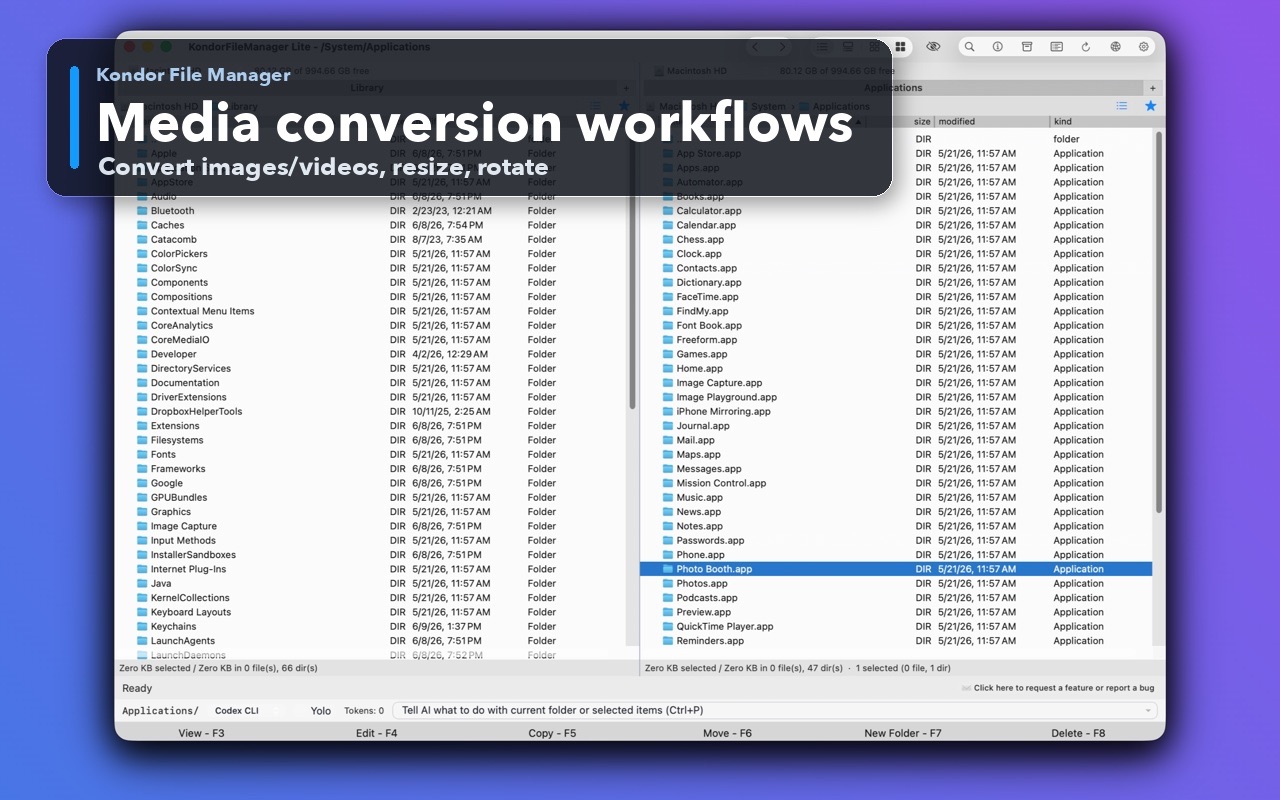
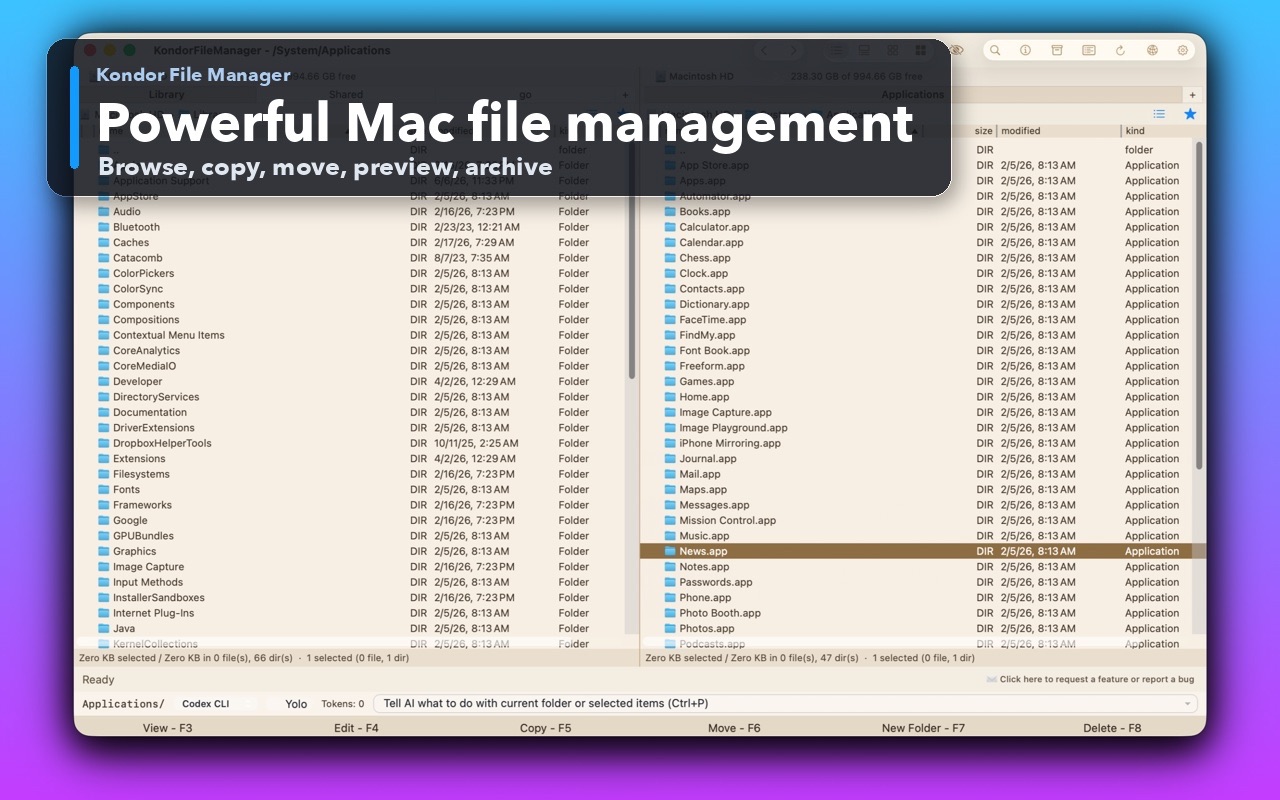
Real Kondor screenshots show the file workspace. The steps below explain the controls used for this task.
Media conversion workflowsConvert and prepare image or video batches close to their source and destination folders.Two-pane Mac file workspaceKeep source and destination folders visible during repeated file operations.
Step by step
Choose the method that matches the job.
Resize an occasional batch with Preview
A small group of local images when the built-in Mac app is enough.
Duplicate the photos into a working folder first, because saving resized documents can replace those working files.
Open the working copies together in Preview and show the thumbnail sidebar. Select the thumbnails you want to resize.
Choose Tools > Adjust Size, choose pixels or a percentage, and keep proportional scaling enabled.
Enter the intended size, apply the change, and save the working copies. Reopen a portrait and landscape image to confirm the dimensions and appearance.
Good to know: For photos inside a Photos library, export files first. Work on those exports rather than modifying the library's internal folders.
Save a resized batch to the opposite Kondor pane
Repeated website, client-review, or marketplace image deliveries.
Open the original images in one Kondor pane and an existing local output folder in the other.
Select image files and choose Files > Resize Images, or press Command-Shift-I with the default keymap.
Choose Exact pixel size and enter the maximum width and height. Leave Keep aspect ratio on to fit each image inside that box; use Scale by percentage when every image needs the same proportional reduction.
Select Save resized copies to target pane. Check a short test batch before processing the remaining images.
Inspect dimensions, orientation, visible detail, and actual file sizes in the output folder. Convert format or adjust encoding separately if your upload still exceeds its byte limit.
Good to know: Increasing dimensions cannot recover detail that was absent in the original. A smaller output is generally appropriate for a review copy, not a replacement for an archival master.
Both images fit within the same maximum dimensions without being stretched into squares. The output byte sizes still depend on format, content, and encoding.
Safety and limits
Keep the useful guardrails.
Resizing can change metadata, color, and encoding characteristics depending on the source format and output path. Check a representative sample for a color-critical job.
A strict maximum file size requires checking encoded output bytes; dimensions alone cannot guarantee it.
Animated images, layered documents, RAW files, and multi-page formats need format-specific handling. Do not assume a general image resize preserves all frames or layers.
Yes. Preview can adjust selected image thumbnails together, and Kondor Pro can resize selected images into a separate target folder.
How do I resize photos without stretching them?
Keep proportional scaling or Keep aspect ratio enabled. A width-and-height box then acts as a maximum boundary rather than forcing every image to those exact dimensions.
Does resizing guarantee a file smaller than 1 MB?
No. Pixel count influences size, but format, image detail, and compression also matter. Check the actual output size and adjust the format or encoding if necessary.
Will Kondor overwrite my original pictures?
The resize dialog offers copies to the target pane and, for local images, an in-place option. Choose Save resized copies to target pane when you want to retain the original files.