How to copy files to an external hard drive on Mac.
To copy files to an external hard drive on a Mac, connect and unlock the drive, open it in Finder, then drag the selected files to the drive. For a large transfer, keep the source until copying finishes and a sample opens from the external disk. If your Mac can read the drive but cannot write to it, check available space, permissions, and file-system format before changing the disk.
Copy first and verify the destination before deciding whether to remove the source files.
Available space and write access matter as much as the cable or drive connection.
Reformatting a drive erases its contents, so back up anything important before changing its format.
Real product evidence
See the KFM workflow before trying it.
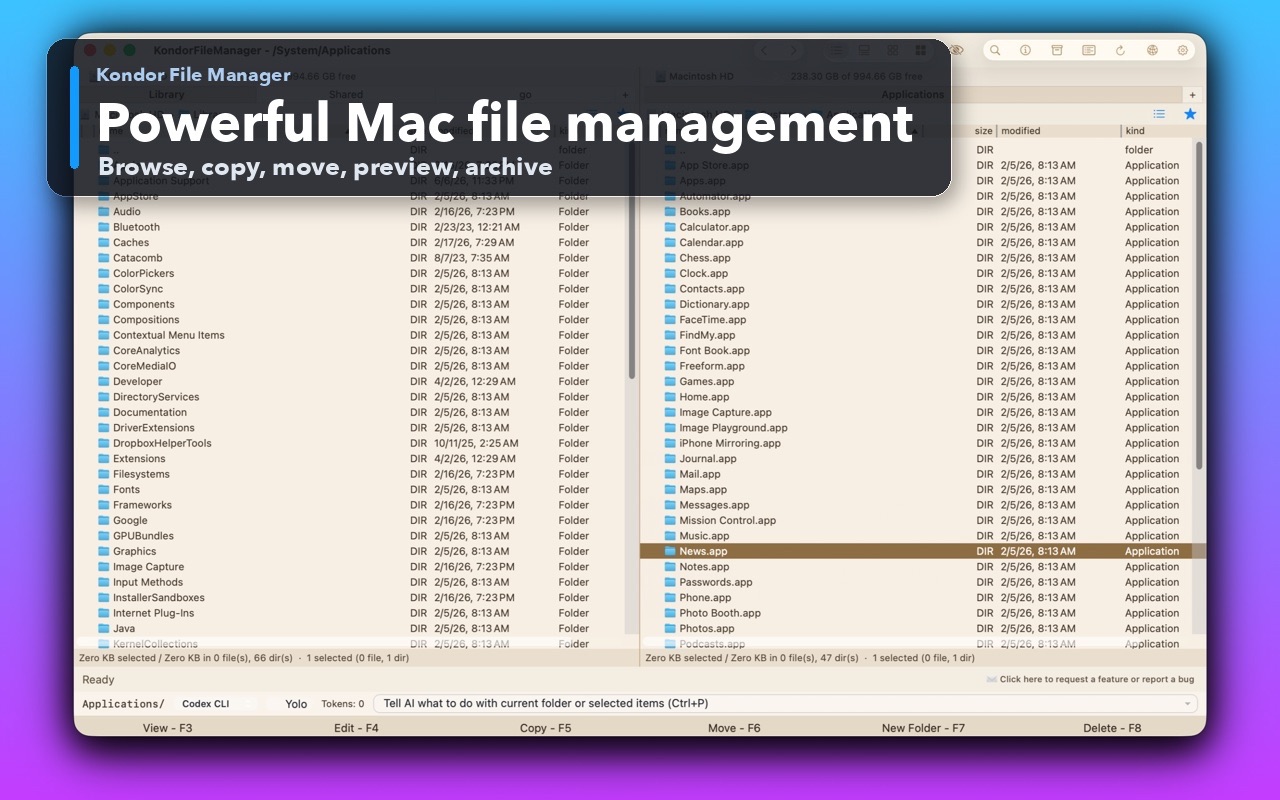
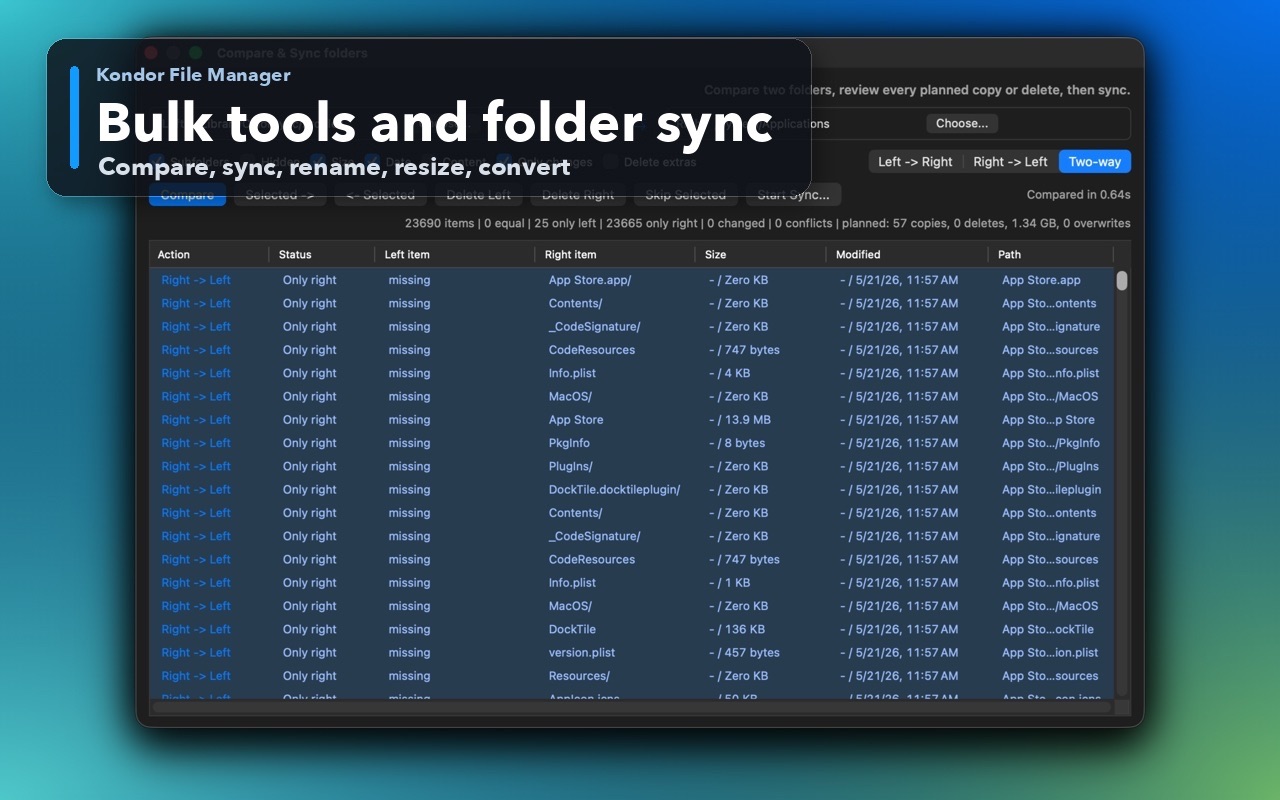
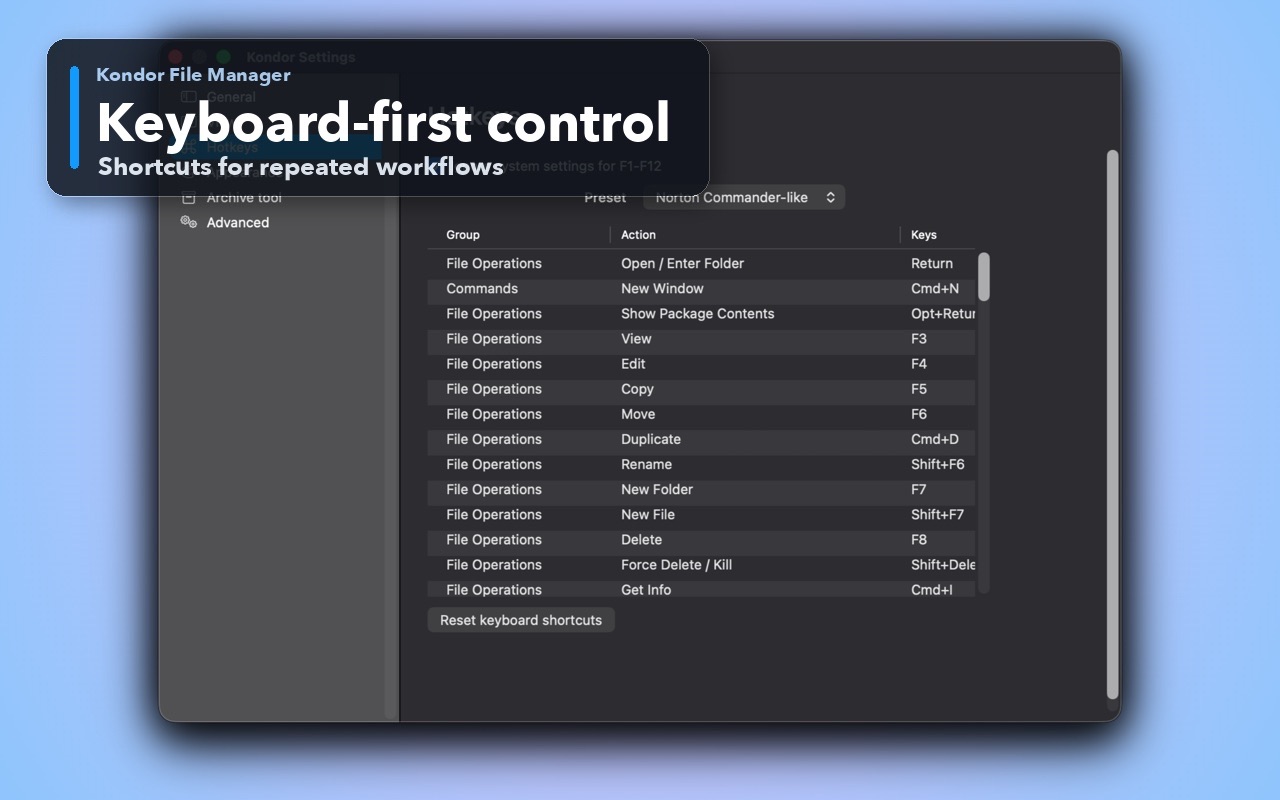
Real Kondor screenshots show the file workspace. The steps below explain the controls used for this task.
Two-pane Mac file workspaceKeep source and destination folders visible during repeated file operations.Folder compare and syncReview folder differences before running a deliberate synchronization.Keyboard-first controlDiscover and customize commands for fast file work without leaving the keyboard.
Step by step
Choose the method that matches the job.
Method 1: copy with Finder
Use Finder for a quick transfer when the source and destination are easy to reach.
Connect the external hard drive or USB flash drive. If it is encrypted, unlock it before copying.
Open the source folder and select the files. Open the external disk from the Finder sidebar or desktop.
Drag the selection to the external disk to copy it. Finder normally copies between different disks; holding Command while dragging changes the operation to a move.
Wait for the transfer to finish, then open a few destination files and compare the folder contents before deleting anything from the Mac.
Good to know: For a backup or first transfer, copy instead of moving. A second copy gives you a chance to catch a missing file, incomplete transfer, or an unexpected destination before the only source is removed.
Method 2: keep both locations visible in Kondor
Use a two-pane layout for repeated folder copies or when you need to monitor a longer job.
Choose the external volume in one pane and open the source folder in the other.
Select the files or folders to transfer. Review their names and sizes before starting the copy.
Use Copy (F5 in Kondor's default keymap) to copy the selection to the opposite pane. The shortcut can be changed in settings.
For a long transfer, use the background task manager to follow progress. Wait for completion before ejecting the disk.
Good to know: Kondor keeps the source and destination visible while a file operation runs. The menu shows the active shortcut, so check it if your keymap differs from the default.
If the Mac will not write to the external drive
Check these points before you erase or reformat a disk.
Select the disk in Finder and press Command-I to check its available space and format.
APFS and Mac OS Extended are Mac formats. ExFAT is commonly used when a disk must also work with Windows. macOS may read an NTFS disk without being able to write to it by default.
Check whether the disk or folder is locked and whether your account can write to it.
Only consider reformatting after backing up the disk and confirming the new format fits every computer or device that will use it.
Good to know: Apple's Disk Utility erase operation removes existing data. A read-only NTFS disk is not proof that the hardware has failed.
Safety and limits
Keep the useful guardrails.
A copy is not verified just because the progress window closed. Open representative files and compare the expected folder contents.
Do not disconnect a drive while a copy is active. Eject it from macOS after the transfer is complete.
Changing a drive's format can erase its existing data and may affect compatibility with Windows, cameras, consoles, or backup software.
How do I copy files from a Mac to an external hard drive?
Connect and unlock the disk, open it in Finder, then drag the selected files to it. Keep the originals until the copy completes and you have checked files on the external drive.
Why can my Mac read but not write to an external hard drive?
The drive may be formatted as NTFS, which macOS may read without writing by default. Check the disk's format, available space, and permissions. Back up the disk before considering a reformat.
Should I move or copy files to an external drive?
Copy first when the drive is a backup or the files are important. Verify the destination, then remove the source only if you intended to free space and have another safe copy.
Which external drive format works with both Mac and Windows?
ExFAT is commonly used for cross-platform file exchange. APFS and Mac OS Extended are Mac formats. Choose based on the devices that need the drive, and preserve a backup before reformatting.