How to create a folder from selected files on Mac.
In Finder, select the files and folders you want to group, Control-click one selected item, choose New Folder with Selection, enter a name, and press Return. macOS moves the selection into the new folder. Kondor provides the same command from its file menus and context menu; its default shortcut is Control-Shift-F7. If the originals must stay in place, create an empty folder and copy the items instead.
New Folder with Selection creates the folder in the current location and moves the selected items into it.
Review the selection before confirming so unrelated files do not end up in the same folder.
Create an empty destination and copy files when you need the originals to remain where they are.
Real product evidence
See the KFM workflow before trying it.
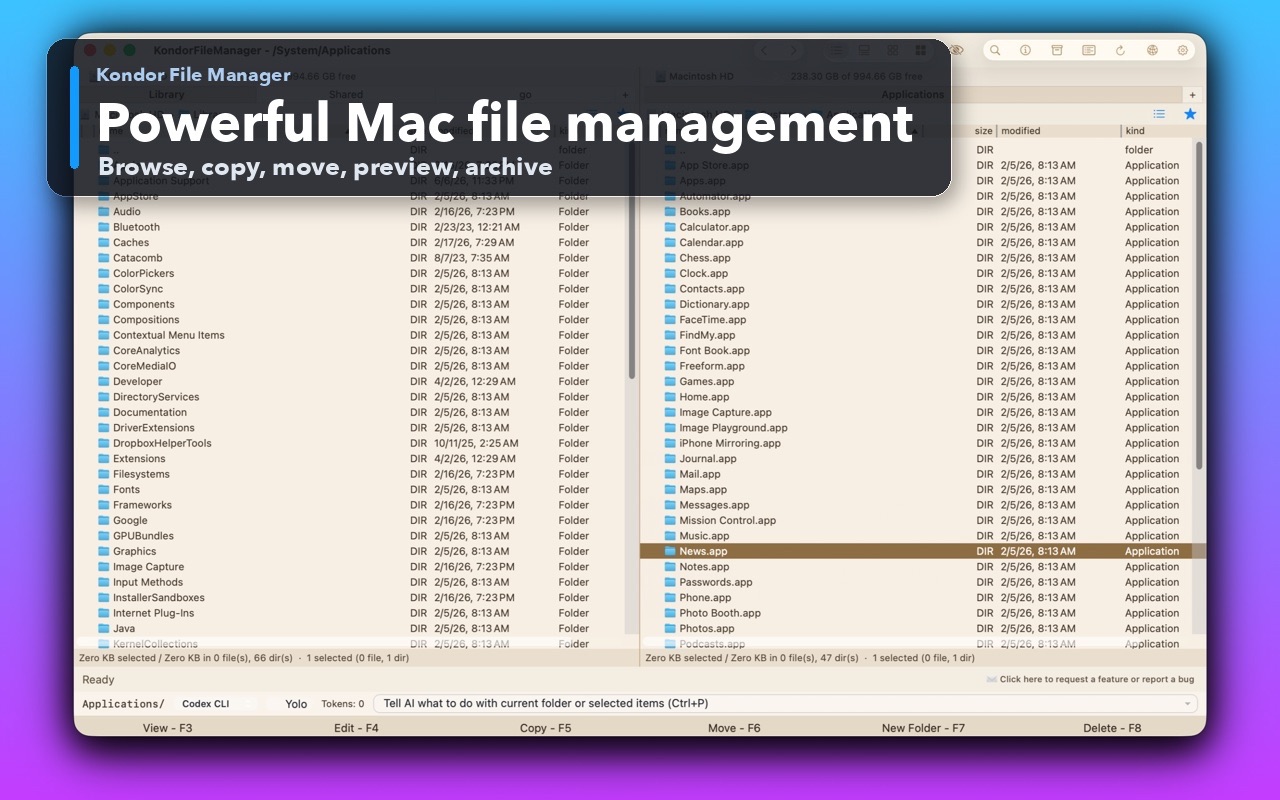
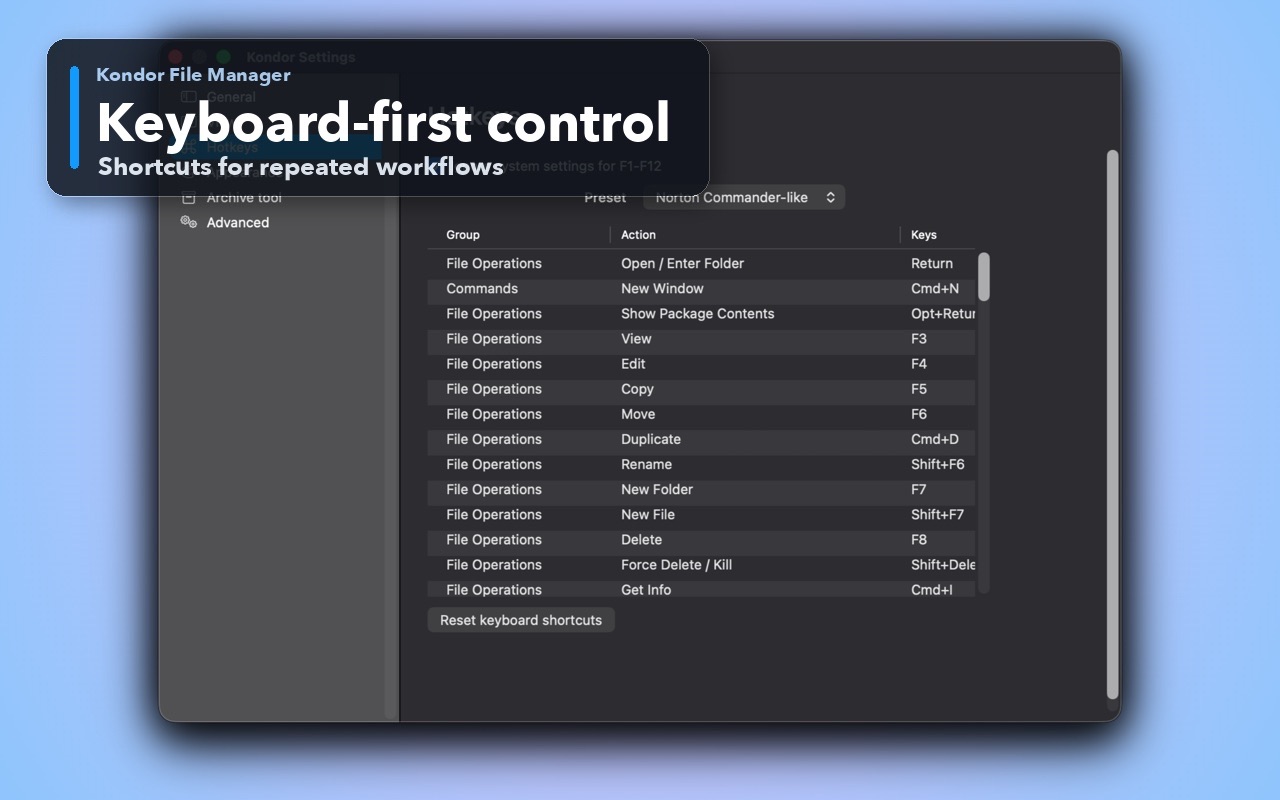
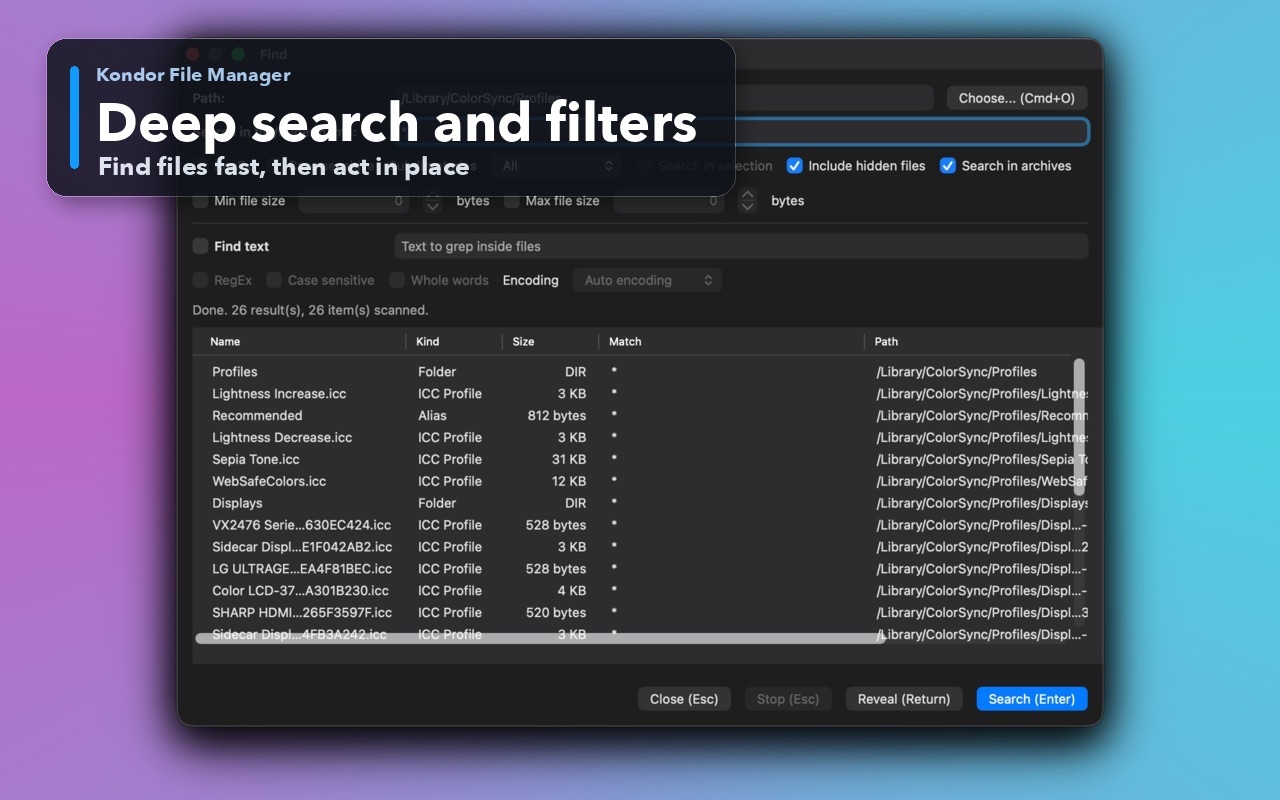
Real Kondor screenshots show the file workspace. The steps below explain the controls used for this task.
Two-pane Mac file workspaceKeep source and destination folders visible during repeated file operations.Keyboard-first controlDiscover and customize commands for fast file work without leaving the keyboard.Deep search and filtersSearch by name and attributes, with an option to include hidden files.
Step by step
Choose the method that matches the job.
Method 1: group files with Finder
Use Finder's built-in command for a small or occasional selection.
Open the folder or desktop that contains the items. Select the files and folders that belong together.
Control-click one of the selected items. Choose New Folder with Selection from the contextual menu.
Enter a folder name that describes the group, then press Return.
Open the new folder and confirm the right items moved into it before continuing with another batch.
Good to know: If you do not see New Folder with Selection, make sure Finder has focus, the location is writable, and more than one appropriate item is selected.
Method 2: use Kondor's two-pane workflow
Use Kondor when you want to group files from a detailed list or continue organizing the new folder.
Open the source location in one pane and select the items to group.
Choose New Folder with Selection from the Files menu or the selection's context menu. Control-Shift-F7 is the default shortcut.
Enter a clear folder name. Kondor checks for name conflicts and protects the operation if a move fails.
Review the new folder in the pane, then use the other pane to continue copying, renaming, or organizing the grouped items.
Good to know: The shortcut can be changed in Hotkeys settings. Read the current menu label if the command is not on Control-Shift-F7 in your keymap.
Copy instead of moving the originals
Use a normal copy workflow when the selection is a backup or must remain in its original folders.
Create an empty folder at the destination and choose a name.
Copy the selected files into that folder. In Finder, hold Option while dragging to make a copy; in Kondor, use Copy to the opposite pane.
Open representative copied files and compare the expected names before removing any source items.
Good to know: New Folder with Selection is a move-and-group command. It is not a duplicate command or a way to create aliases.
How do I put selected files into a new folder on Mac?
Select the items in Finder, Control-click one of them, choose New Folder with Selection, name the folder, and press Return. macOS moves the selected items into that folder.
Does New Folder with Selection copy or move files?
It moves the selected items into a new folder in the current location. Create an empty folder and copy the items when you need to keep their originals.
What is Kondor's shortcut for New Folder with Selection?
Control-Shift-F7 is the default Kondor shortcut. You can remap it in Hotkeys settings, so check the Files menu if your keymap differs.
Can I create a folder from selected files on the desktop?
Yes. Select the desktop items, Control-click one selected item, and choose New Folder with Selection. The new folder appears on the desktop and contains the selected items.