In Terminal, run ln -s followed by the existing target path and a new link path. In Kondor Lite, select a local file or folder and choose Files > Make Symlink. Kondor creates a uniquely named link beside the source, with 'symlink' in its name; move that link if your workflow needs it elsewhere.
A symlink points to a path; it is not a copy, a sync operation, or a backup.
A Finder alias and a symbolic link are not interchangeable. Choose the format the receiving app or command-line tool understands.
Kondor's local Make Symlink command is available in Lite. Creating a link does not grant permission to read its target.
Real product evidence
See the KFM workflow before trying it.
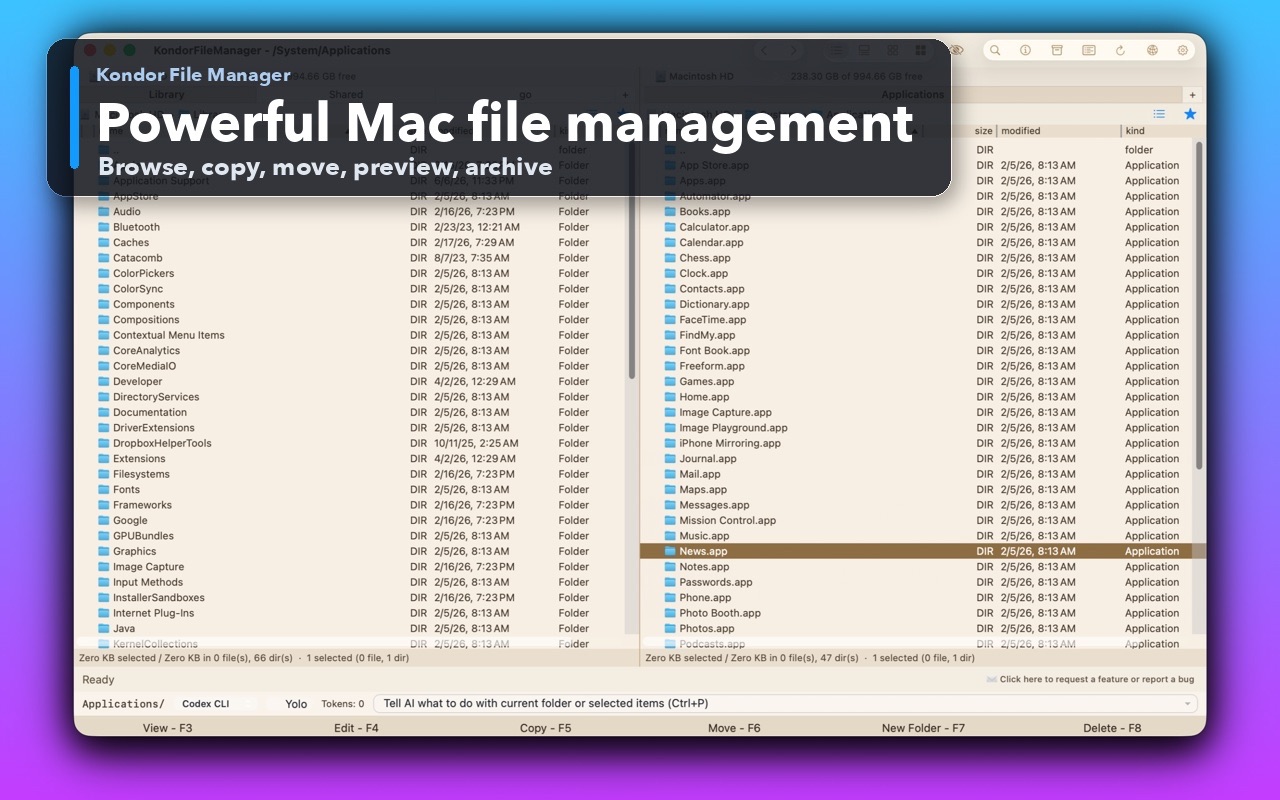
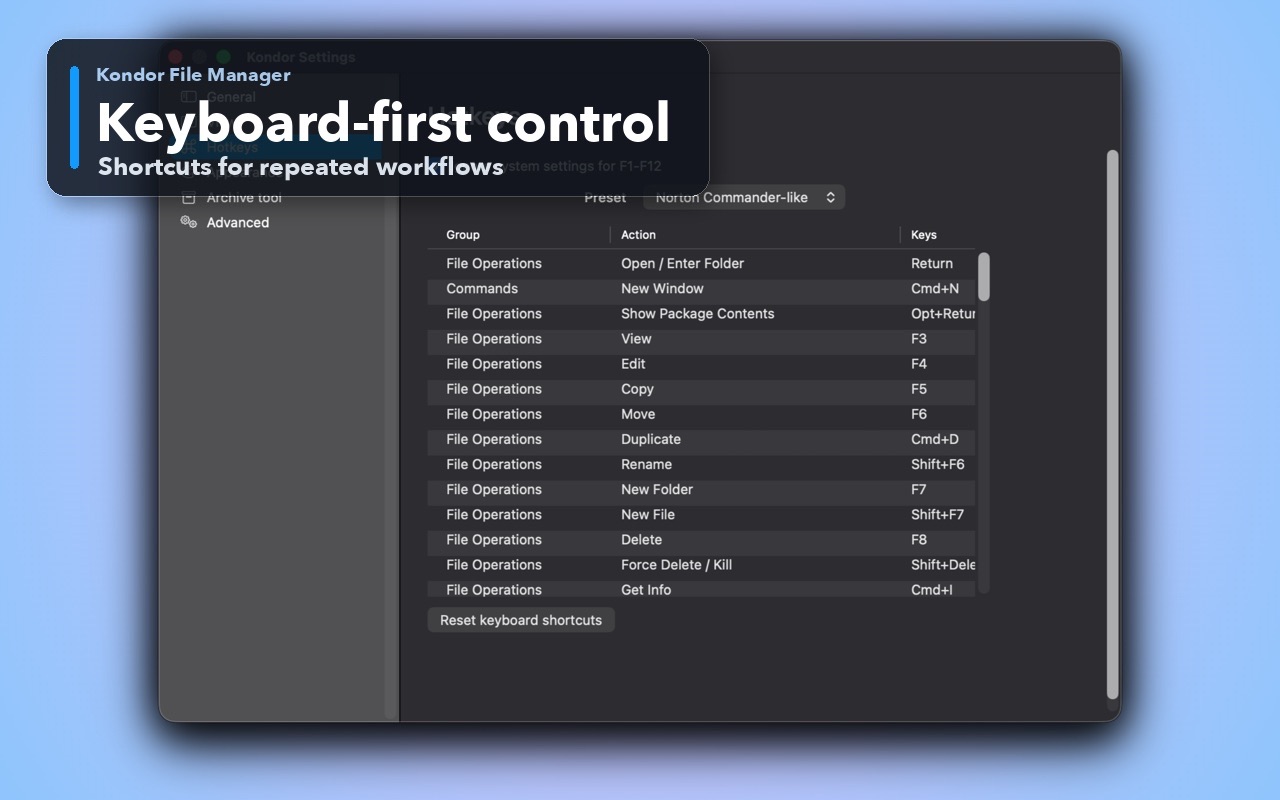
Real Kondor screenshots show the file workspace. The steps below explain the controls used for this task.
Two-pane Mac file workspaceKeep source and destination folders visible during repeated file operations.Keyboard-first controlDiscover and customize commands for fast file work without leaving the keyboard.
Step by step
Choose the method that matches the job.
Create a precisely named link with Terminal
A project or tool that expects a particular link path.
Identify the existing target and an existing writable parent folder for the new link. Confirm the intended link name is not already in use.
Open Terminal and type ln -s followed by the quoted target path, a space, and the quoted new link path.
Use absolute paths when the link must be unambiguous. A relative target is resolved from the link's containing directory, not from every future shell location.
Inspect the new link and test it with the application that will use it. If the target moves, update or recreate the link.
Good to know: The example intentionally omits force flags. If a link name already exists, inspect it instead of overwriting an unrelated file. Use ordinary writable project folders rather than protected system paths.
Create a local link in Kondor Lite
A visible file-manager workflow without typing paths.
Open the local folder in Kondor and select the source file or folder.
Choose Files > Make Symlink, or find Make Symlink under Misc in the item context menu.
Find the newly created item beside the source. Its name includes symlink, and Kondor chooses a unique name if needed.
Rename or move the link itself to the required local location. Confirm the target still resolves there before configuring another app to depend on it.
Good to know: Kondor creates the link in the current local folder, not automatically in the opposite pane. It uses the selected target's path, so moving the target later can break the link.
Both parent directories must already exist and Demo/assets must be unused. The displayed arrow is explanatory notation, not shell syntax. This creates a link, not another copy of the image collection.
Safety and limits
Keep the useful guardrails.
Moving or deleting the target can leave a dangling symlink. The link's continued existence does not prove its target is available.
Some applications, archive tools, cloud services, and transfer formats handle symlinks differently. Verify behavior before using one for a shared delivery.
Remove only the link entry when you no longer need it. Before a delete operation, confirm you have selected the link rather than navigated into and selected its target contents.
No. An alias is a macOS reference format used by Finder and compatible apps. A symbolic link is a filesystem path reference used by Unix tools and many applications. Use the kind your workflow requires.
What order do the paths use in ln -s?
The existing target comes first and the new link path comes second: ln -s target link. Quote paths containing spaces or drag paths into Terminal carefully.
Why is my symbolic link broken?
The target path may have moved, been deleted, become unavailable, or be inaccessible to the app using it. For relative links, also check the path relative to the link's containing folder.
Does deleting a symlink delete the original file?
Removing the link entry itself removes that reference. Acting on files after following the link is different and can affect the target contents. Confirm exactly what is selected before deleting.